I love static site generators like Jekyll because all posts and assets can be stored in a single Git repository. From time to time I find myself needing to publish a new post or to change the way the content is generated (for example to change the appearance). For short modifications, a bash terminal and nano are perfect, because I can simply connect to the server via ssh, apply changes, and push them to the repository. However, when I write more than a single line of text, I prefer a modern text editor with full spellcheck support and Markdown preview capabilities.
There are countless ways to connect to a container and setup your favorite text editor, but I usually use only two approaches:
- Set up a local samba server. It’s great when you need to access a server in a local network. If your text editor is Visual Studio Code, this way you will be able to use already installed version. Also, a shared directory will behave almost exactly like a directory on your computer.
- Set up Visual Studio Code in the browser and connect to it through the internet. It’s great when I need to connect to a container through the internet. This way all settings will be stored inside the container so you’ll be able to continue your work no matter where you are.
Many parts of this post can be skipped (for example if you already have a working container or VPS). The post is structured in the following way:
- Creating and setting up an incus container. You don’t have to do it. You can just use an existing VPS or server.
- Installing Jekyll and common tools. You can install an SSG of your choice.
- Setting up a Samba server (if you need a local access).
- Setting up Visual Studio Code in the browser (if you want to have an access through a web browser).
- Setting up Git.
- Setting up GitHub.
- Developing a static website.
Used names and IPs
In this post I’ll use the following names and IP addresses. You should substitute these with your own values where appropriate.
-
ubuntu/24.04- the Incus container image. -
incus-jekyll- the name of the created Incus container. -
192.168.205.50/24- the static IP address assigned to the Incus container. -
192.168.205.1- the gateway for the container’s network (this will almost certainly be different in your setup). -
username- the name of created user.
Versions:
- Ubuntu LTS 24.04 - host and agent operating system.
- Incus version 6.0.0.
Creating an Incus container
Even though you could install an interpreter (Ruby for example) and static site generator on your main server, I wouldn’t recommend doing so. Doing so will increase complexity of your server, you’ll have to think about more things and you won’t be able to easily delete all packages related to an SSG.
It doesn’t matter what containerization system you use (Docker, Podman, FreeBSD jails, etc.). I just prefer Incus because it’s easier and faster to set up and it doesn’t have a proprietary nature as Canonical LXD.
Create an Incus container:
incus launch images:ubuntu/24.04 incus-jekyll
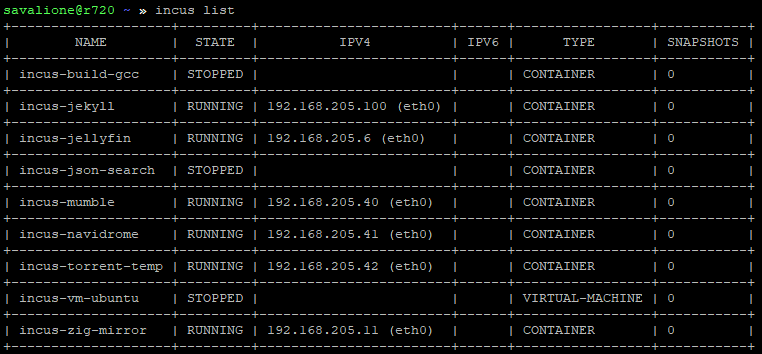
By incus list you can see the list of all containers and virtual machines, including the newly created container (if there weren’t any issues creating it):
Setting up the created container
After creating a container, I update all packages and install common tools I often use:
apt update
apt upgrade
apt install nano
Right now the container has 192.168.205.100 IP assigned by my DHCP server located at 192.168.205.1.
I would like to change the IP to static so in the future it won’t change.
To do so:
Enter a bash shell in the container:
incus exec incus-jekyll -- bash
Set up the network interface by editing /etc/netplan/10-lxc.yaml. Right now it looks like this:
network:
  version: 2
  ethernets:
    eth0:
      dhcp4: true
      dhcp-identifier: mac
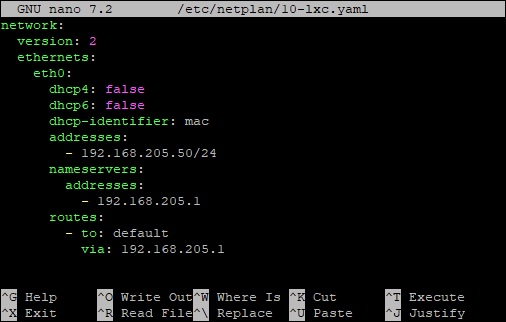
Change it to this:
network:
  version: 2
  ethernets:
    eth0:
      dhcp4: false
      dhcp6: false
      dhcp-identifier: mac
      addresses:
        - 192.168.205.50/24
      nameservers:
        addresses:
          - 192.168.205.1
      routes:
        - to: default
          via: 192.168.205.1
The new settings are configured as follows:
Apply the new Netplan settings:
netplan apply
Now you can exit the container.
By using incus list we can see that the ip has been updated:

Installing Jekyll and common tools
If you use Incus, enter the instance:
incus exec incus-jekyll -- bash
Inside the instance install common tools (optional):
apt install wget curl git
Install the Ruby interpreter that Jekyll relies on:
apt install ruby-full build-essential zlib1g-dev
By default you connect to an instance as the root user, so it’s better to create a new one and give sudo access:
adduser username
usermod -aG sudo username
Login as the new user:
su username
Add the following to ~/.bashrc or ~/.zshrc:
# Install Ruby Gems to ~/gems
export GEM_HOME="$HOME/gems"
export PATH="$HOME/gems/bin:$PATH"
Update bash rc file:
-
source ~/.bashrcorsource ~/.zshrc
Finally install Jekyll:
gem install jekyll bundler
Right now you should be able to compile a simple Jekyll static website as the username user.
You also can develop your website via the terminal and, for example, nano.
Setting up Samba
I like this method because it allows me to develop an SSG site without too much hassle with Git credentials, keys, GitHub SSH key, etc.
Enter the instance. In case of Incus:
incus exec incus-jekyll -- bash
Optionally you can create a directory so your Samba share doesn’t point to ~/ and everything looks clean:
mkdir ~/git
Install Samba server:
apt install samba
Samba settings are located here: /etc/samba/smb.conf
I usually delete it and replace with something like this:
[global]
    workgroup = WORKGROUP
    server string = %h server
    netbios name = jekyll.net.savalione.com
    dns proxy = no
    log file = /var/log/samba/log.%m
    max log size = 1000
    passdb backend = tdbsam
    unix password sync = yes
    passwd program = /usr/bin/passwd %u
    pam password change = yes
    map to guest = bad user
    usershare allow guests = no
    # protocol
    server min protocol = SMB2
    client max protocol = SMB3
    client min protocol = SMB2
    # sharing
    browseable = yes
    # default mask
    create mask = 0664
    directory mask = 0775
    # Printers
    printing = cups
    printcap name = cups
Then add a new share:
[jekyll]
    path = /home/username/git
    browsable = yes
    writable = yes
    guest ok = no
    create mask = 0664
    directory mask = 0775
    read only = no
    valid users = username
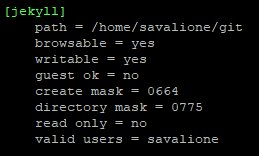
The part of Samba configuration file with a new share may look like this now:
Set up the password for a new user:
smbpasswd -a username
Reload Samba:
systemctl restart smbd nmbd
Now you should be able to access the created Samba share.
When you try to do it via Windows you’ll be asked to provide network credentials:
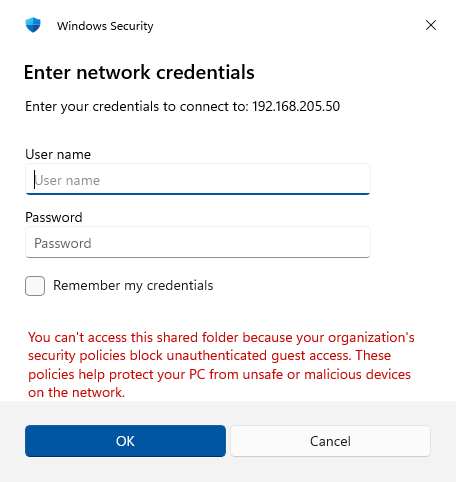
Your username and password were set by Samba configuration file and the smbpasswd command.
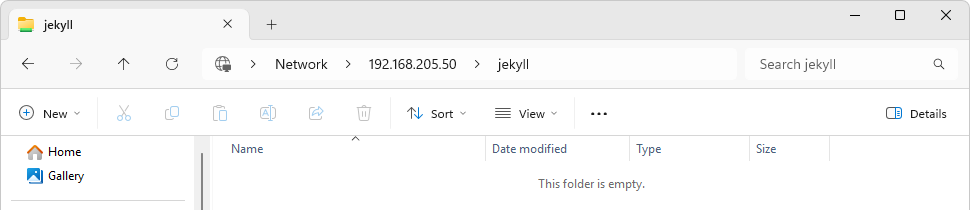
Here is how the new share looks like in the Windows Explorer:
Setting up Visual Studio Code in the browser
If you use Incus, enter the instance:
incus exec incus-jekyll -- bash
Coder provides a simple sh script for installing code-server (VS Code in the browser):
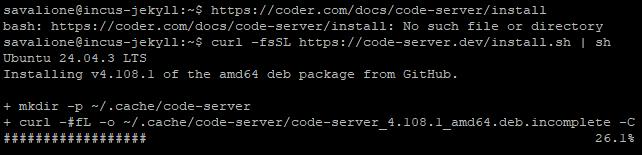
curl -fsSL https://code-server.dev/install.sh | sh
code-server is being installed:
To start a background code-server service run:
code-server
Shortly after the successful initialization of code-server, close it and edit settings.
Settings are located here: ~/.config/code-server/config.yaml.
To have a local network access, edit the file:
- IP:
192.168.205.50 - Port:
8080
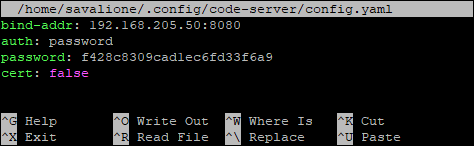
Make sure to record the password.
In my case the password is: f428c8309cad1ec6fd33f6a9.
To start code-server immediately and run on boot via systemd:
systemctl enable --now code-server@$USER
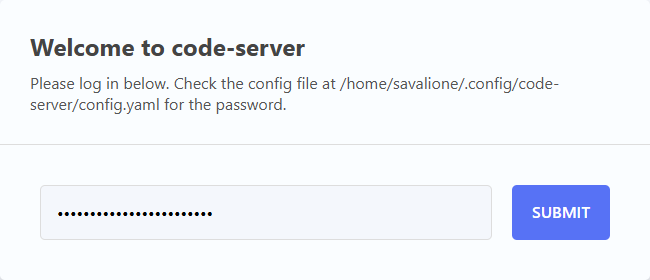
Access 192.168.205.50:8080, enter the password:
If you want to add HTTPS (SSL) support you can check one of my previous posts in which code-server was proxied via Nginx:
Now you should be able to use VS Code in the browser (code-server). You can set it up almost as a regular VS Code desktop application.
Setting up Git
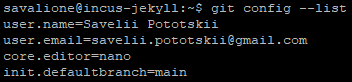
I set up the following Git settings:
git config --global user.name "John Doe"
git config --global user.email johndoe@example.com
git config --global core.editor nano
git config --global init.defaultBranch main
To check current Git settings use git config --list:
Setting up GitHub
To push changes and work with private GitHub repositories, you need to generate a SSH key and add it to GitHub.
Generate key:
-
ssh-keygen -t ed25519 -C "johndoe@example.com"The public key is generated at:~/.ssh/id_ed25519.pub
You need to add it to your GitHub account:
- github.com -> Settings -> SSH and GPG keys -> New SSH Key
- Title: any
- Key type:
Authentication key - Key: content of
~/.ssh/id_ed25519.pub
The GitHub form looks like this:
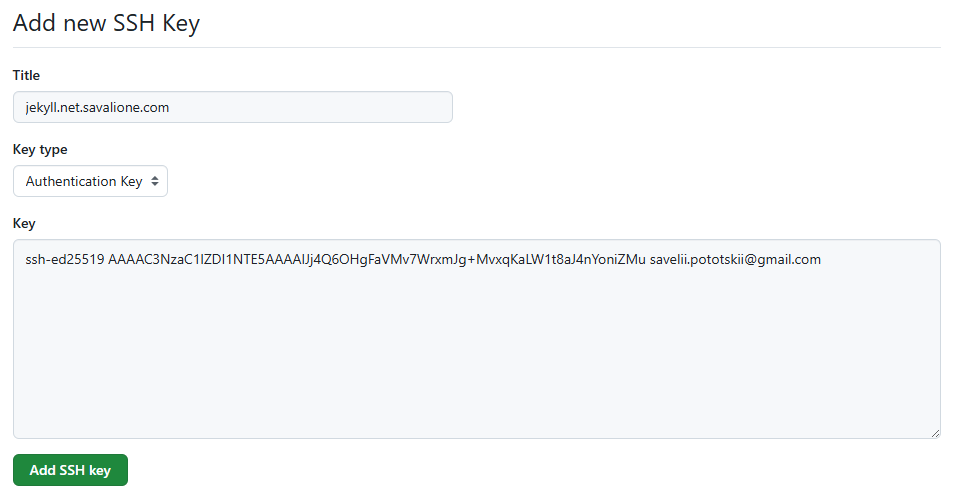
Press Add SSH key, complete 2-FA authentication and your key should be added to your account:

Develop your static website
You are now ready to work on your static site.
For example, here is the way you can work with the source code of this blog.
Clone the repository:
git clone git@github.com:SavaLione/savalione.com.git
Change directory:
cd savalione.com
Install Ruby and Jekyll dependencies:
bundle install
Run or build the blog:
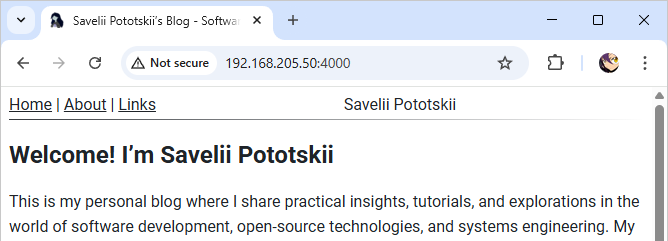
- Create a local server accessible via local network:
bundle exec jekyll server -H 0.0.0.0
- Build the production version:
bundle exec jekyll build
Local server with the generated website:
Note: Opening ports in local network
If your virtual machine, container or server is behind a firewall you may need to open ports. It’s strongly inadvisable to open Samba and code-server ports so they’re accessible via the Internet. For a local network this should be fine.
Ports:
- Samba:
137,138,139,445 - code-server:
8080(depends on the configuration file)