Static websites are amazing. They don’t require a sophisticated runtime environment, the whole setup process is easy, and they can be easily horizontally scaled. Thanks to modern Linux distributions, efficient web servers, and hosting providers, it’s very easy to set up a virtual machine and host a static site.
In this post, I’ll show a simple, modern, and secure way to host a static website using nginx, Certbot, UFW (Uncomplicated Firewall), and Ubuntu.
I will use example.savalione.com as the example domain for this post.
Setting up DNS
This guide assumes you already have a virtual machine (VPS, cloud instance, etc.) and a domain name.
First, log in to your hosting provider’s dashboard and find the network settings for your virtual machine. You need to find the public IPv4 and IPv6 addresses (IPv6 is optional but highly recommended).
Here is an example of the network settings for a virtual machine (Droplet) on DigitalOcean:
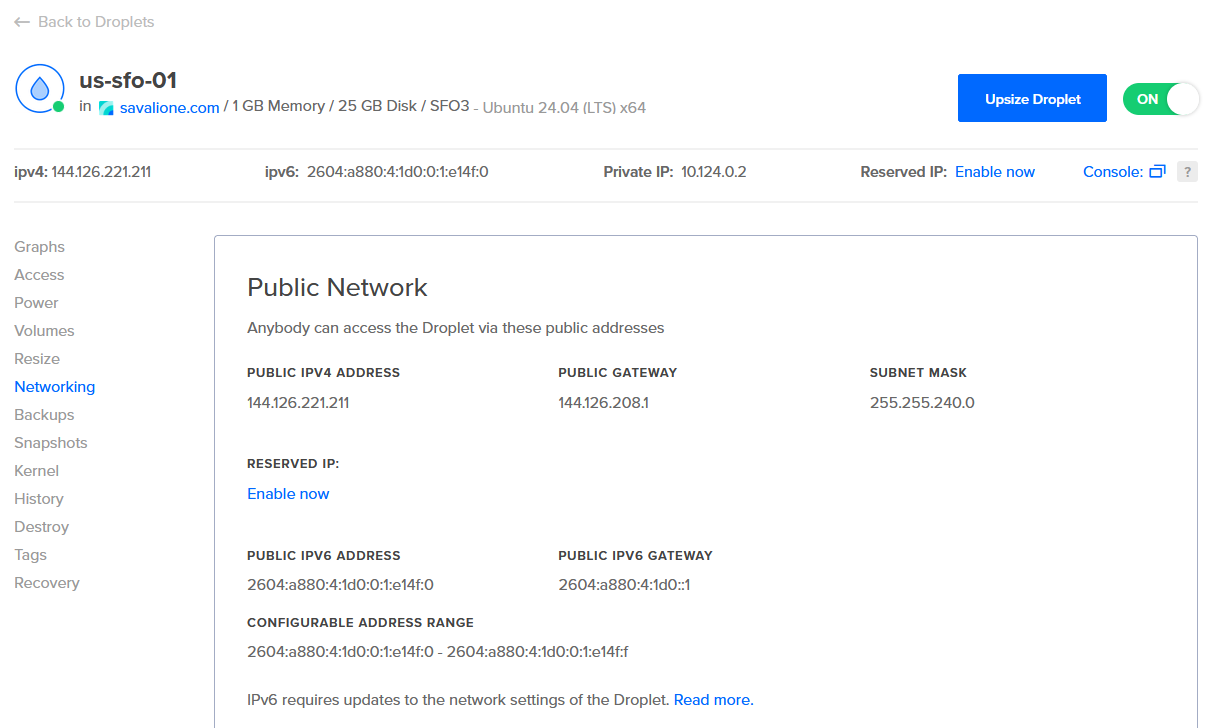
In the screenshot above:
-
144.126.221.211- is the public IPv4 address. -
2604:a880:4:1d0:0:1:e14f:0- is the public IPv6 address.
After obtaining the public IPs, you need to create DNS records for your domain:
- Type
A- point to the virtual machine’s public IPv4 address. - Type
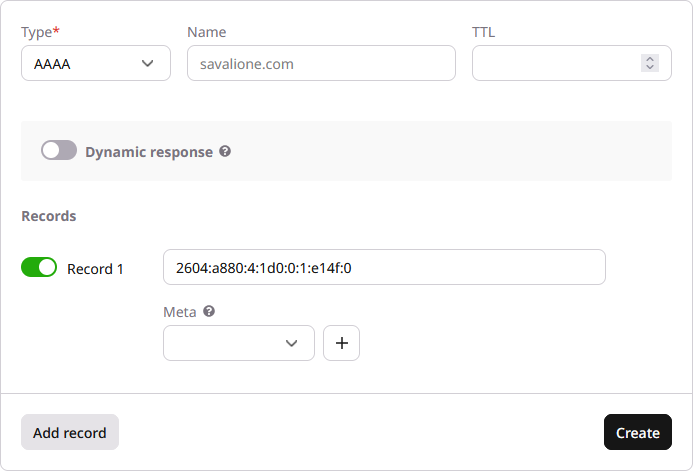
AAAA- point to the virtual machine’s public IPv6 address.
Example of adding a AAAA DNS record for a domain:
Setting up the virtual machine
Login to your server via SSH.
You’ll see something like this:

It is generally advised to update all packages before starting:
apt update
apt upgrade
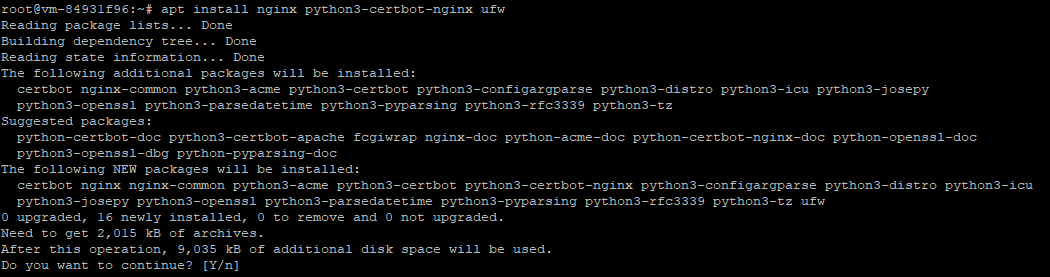
After updating, install nginx and the additional required packages:
apt install nginx python3-certbot-nginx ufw
In order for users to connect to your site, you need to open the HTTP and HTTPS ports. Using the Uncomplicated Firewall (UFW), this is very easy.
Open ports 80 (HTTP) and 443 (HTTPS):
ufw allow 80ufw allow 443
Don’t forget to open the port for SSH connections (usually port 22), otherwise you might lock yourself out:
ufw allow 22
Enable the firewall:
ufw enable
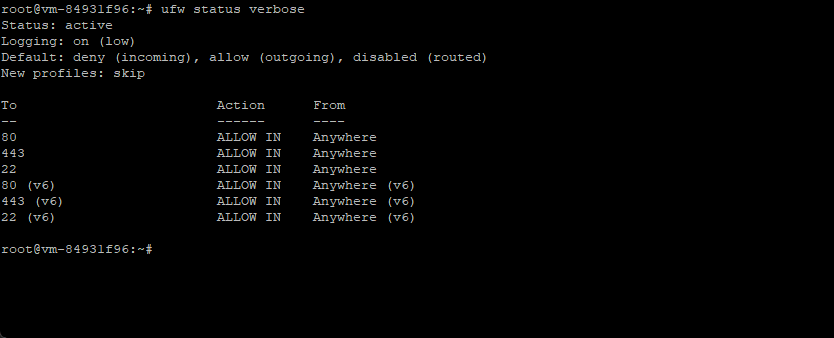
You can check the firewall status and open ports using ufw status verbose:
Choose a directory for the static site
You need to choose a directory where your static site files will be located.
In this post, I’ll be using /www/example.savalione.com:
mkdir /wwwmkdir /www/example.savalione.com
Upload or clone your static site content into this created directory.
Set up the nginx default server (optional)
Optionally, you can create a default server. This is the page people will see if they try to access your server via its IP address directly, rather than the domain name.
Create a directory for the default content:
mkdir /www/default
Create a simple index.html file (nano /www/default/index.html).
You can use your imagination to create a neat design.
I usually use something simple like this:
<!DOCTYPE html>
<html>
    <head>
        <title>Welcome to example.com!</title>
        <style>
            body {
                width: 35em;
                margin: 0 auto;
                font-family: Tahoma, Verdana, Arial, sans-serif;
            }
        </style>
    </head>
    <body>
        <h1>Welcome to example.com!</h1>
        <p>This is example.com server. Check example.com for more information.</p>
    </body>
</html>
Next, modify the nginx default site configuration file:
nano /etc/nginx/sites-available/default
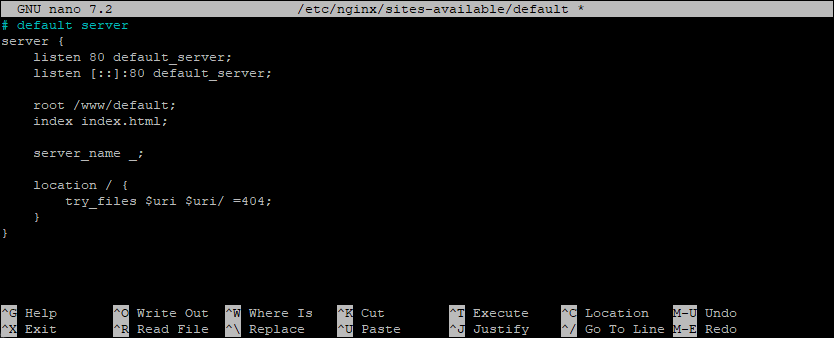
I usually configure the default server like this:
# default server
server {
    listen 80 default_server;
    listen [::]:80 default_server;

    root /www/default;
    index index.html;

    server_name _;

    location / {
        try_files $uri $uri/ =404;
    }
}
Where:
-
default_server,_- specifies the catch-all server for requests that don’t match other domains. -
80,[::]:80- listen on IPv4 and IPv6 ports. -
/www/default- the directory where the static site files are stored.
This is how the configuration file looks in the editor:
Check the nginx configuration:
nginx -t
If everything is fine, restart nginx:
systemctl restart nginx
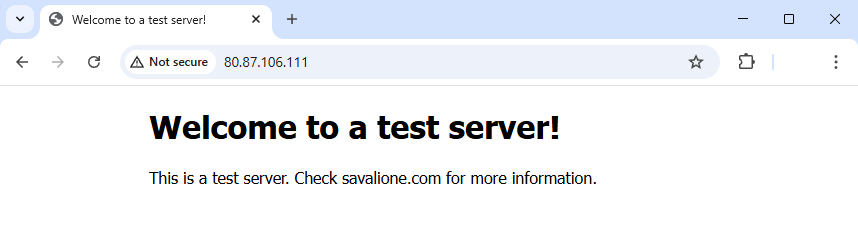
Now, if you connect to the server via its IP address, you will see the default page:
Setup the nginx static website configuration
Now, let’s set up the actual website. Create a configuration file for your domain:
nano /etc/nginx/sites-available/example.savalione.com
Add the following configuration:
server {
    server_name example.savalione.com;

    listen [::]:80;
    listen 80;

    root /www/example.savalione.com;
    index index.html;
    charset utf-8;

    location / {
        try_files $uri $uri.html $uri/ =404;
    }
}
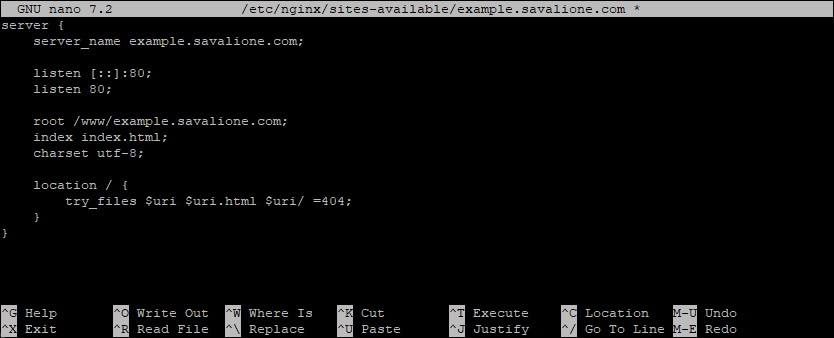
Here is how the configuration file looks:
Enable the site by creating a symbolic link to the sites-enabled directory:
ln -s /etc/nginx/sites-available/example.savalione.com /etc/nginx/sites-enabled/
Check the nginx configuration:
nginx -t
If everything is fine, restart nginx:
systemctl restart nginx
You should now be able to access your static website via HTTP.
Obtain SSL certificates
In this step, SSL certificates will be obtained so the website is modern and secure. We will use Certbot to obtain free certificates from Let’s Encrypt.
Run Certbot with the nginx plugin:
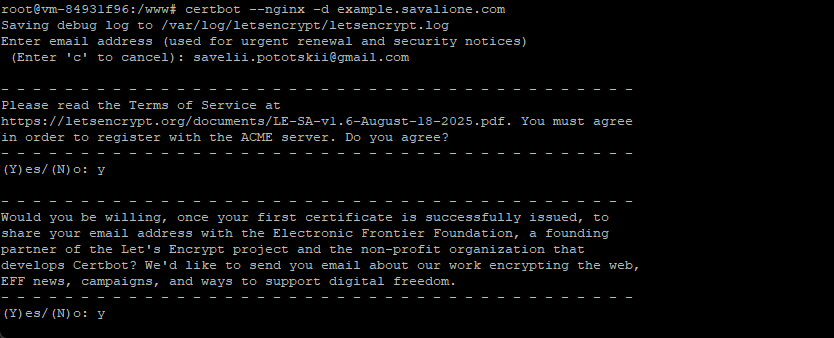
certbot --nginx -d example.savalione.com
Certbot will ask for your email and agreement to the Terms of Service:
If successful, you will see a message confirming the certificate deployment:
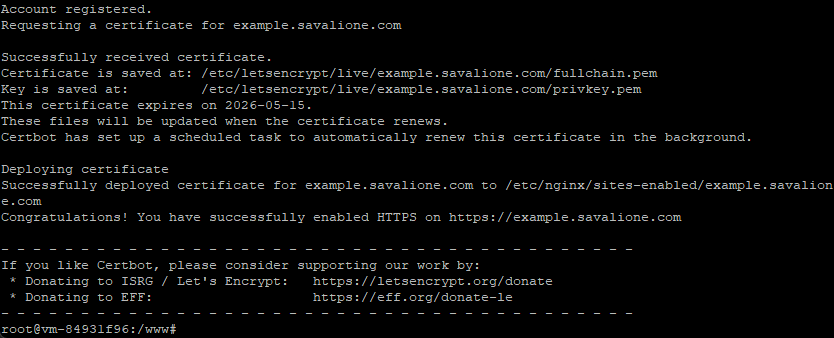
Certbot will automatically modify your nginx configuration to enable SSL and redirect HTTP traffic to HTTPS.
You can verify the changes by opening the config file again:
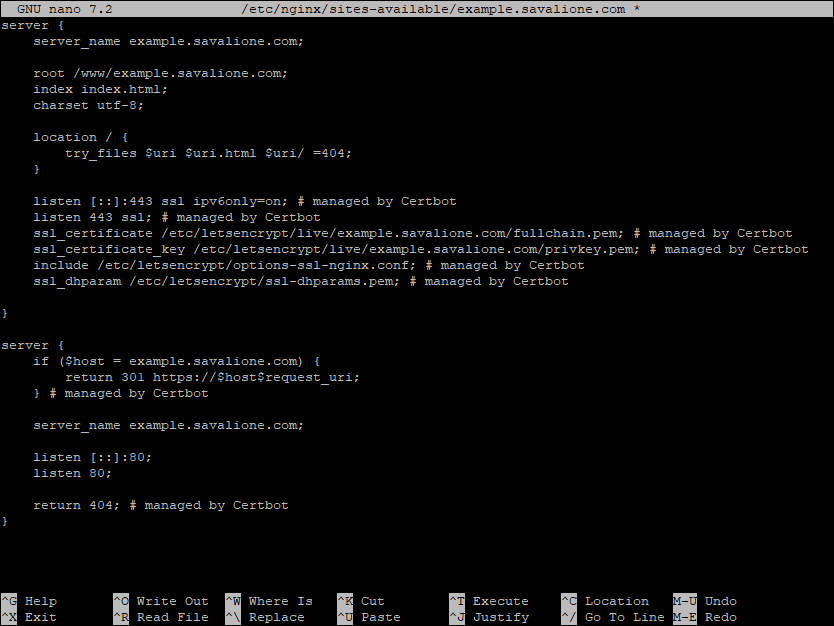
Before restarting nginx, check the configuration again:
nginx -t
Restart nginx:
systemctl restart nginx
Now you can access your static website via HTTPS: