When you need to get an SSL certificate from Let’s Encrypt on Ubuntu via the default challenge (HTTP-01), Certbot is amazing. Certbot is available in the default Ubuntu repository, and it automatically integrates with nginx and Ubuntu (via a systemd timer for automatic renewals).
But when you need to easily switch an ACME challenge provider or the HTTP-01 challenge won’t work (for example, if you have a geographically distributed website that serves content from different servers and relies on GeoDNS), Certbot may not be enough.
Reasons to consider using something other than Certbot:
- You use GeoDNS and want native support for different DNS providers to use the DNS-01 challenge. It can be useful if you have a distributed website that serves content from multiple servers.
- You want native support for different CAs (for example, Google Trust Services).
- You don’t want to use Snap or Python Package Manager (pip) just to install Certbot, and the version of Certbot in the APT repository is too old.
- You want to obtain certificates as a user without root privileges.
A great alternative to Certbot is acme.sh.
Reasons to consider using acme.sh:
- It’s a zero dependency shell script, so it will work on almost any distribution that has a bash terminal (it will even work on Windows with bash).
- It has massive DNS API support, so you can use DNS-01 challenge to obtain certificates (dnsapi, dnsapi2).
- It has native support for many Certificate Authorities (CAs).
- It’s highly portable and can be installed and run entirely by a user without root privileges.
- It has a simple update process. It can update itself with a simple command (
acme.sh --upgrade) or can be set to auto upgrade (for example, via crontab).
In this post, we will replace Certbot with acme.sh on a simple static website hosted on an Ubuntu 24.04 LTS server with nginx.
Analyzing Certbot behavior
When using Certbot with nginx in automatic mode, Certbot usually does two things:
- Creates a redirect from the HTTP (80) port to the HTTPS (443) port.
- Adds certificates and SSL settings in the main server block.
Most elements added by Certbot have the # managed by Certbot comment.
Here is an example of an nginx configuration for a static site with HTTPS support that was modified by Certbot:
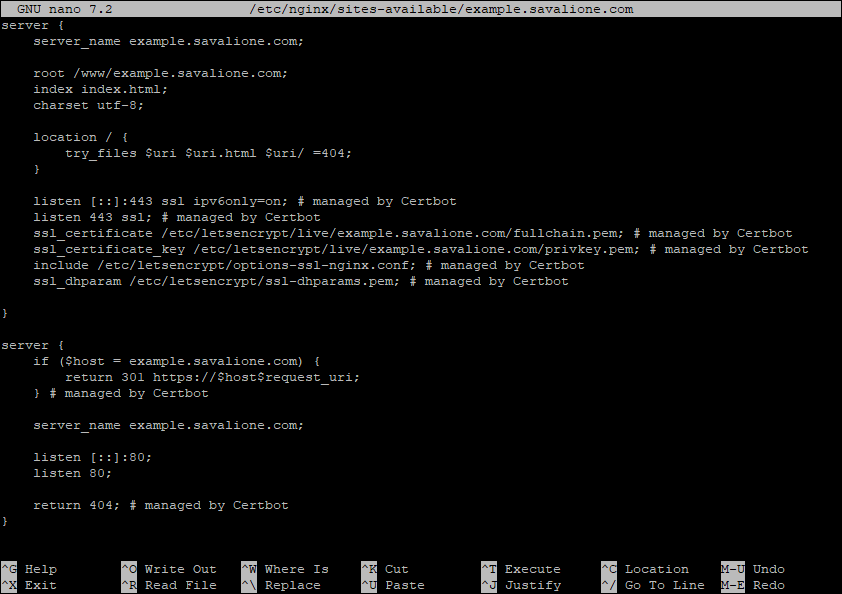
The redirect part looks like this:
server {
    if ($host = example.savalione.com) {
        return 301 https://$host$request_uri;
    } # managed by Certbot

    server_name example.savalione.com;

    listen [::]:80;
    listen 80;

    return 404; # managed by Certbot
}
In this section, nginx listens for all incoming connections on port 80 across all IPv4 and IPv6 addresses. If the host is specified in the request, the request is forwarded to the HTTPS port.
The main part looks like this:
server {
    server_name example.savalione.com;

    root /www/example.savalione.com;
    index index.html;
    charset utf-8;

    location / {
        try_files $uri $uri.html $uri/ =404;
    }

    listen [::]:443 ssl ipv6only=on; # managed by Certbot
    listen 443 ssl; # managed by Certbot
    ssl_certificate /etc/letsencrypt/live/example.savalione.com/fullchain.pem; # managed by Certbot
    ssl_certificate_key /etc/letsencrypt/live/example.savalione.com/privkey.pem; # managed by Certbot
    include /etc/letsencrypt/options-ssl-nginx.conf; # managed by Certbot
    ssl_dhparam /etc/letsencrypt/ssl-dhparams.pem; # managed by Certbot
}
Here, nginx listens for connections, but on port 443 this time. These settings mean the following:
-
[::]:443- specifies port 443 on all IPv6 addresses. -
443- specifies port 443 on all IPv4 addresses. -
ssl- specifies that all connections accepted on this port should work in SSL mode. -
ipv6only=on- determines whether an IPv6 socket listening on a wildcard address ([::]) will accept only IPv6 connections, or both IPv6 and IPv4 connections. -
include- includes specific Let’s Encrypt settings provided by Certbot. -
ssl_certificate,ssl_certificate_key- specify the locations of the SSL certificate and private key. -
ssl_dhparam- specifies a file provided by Certbot with DH parameters for DHE ciphers.
While some HTTPS parameters added by Certbot are standard and will be required by most HTTPS servers, the ones that specify certificate locations and additional CAs settings will have to be removed. These specific parameters are:
ssl_certificate /etc/letsencrypt/live/example.savalione.com/fullchain.pem;
ssl_certificate_key /etc/letsencrypt/live/example.savalione.com/privkey.pem;
include /etc/letsencrypt/options-ssl-nginx.conf;
ssl_dhparam /etc/letsencrypt/ssl-dhparams.pem;
We will remove these after installing acme.sh.
Installing acme.sh
The official guide provides detailed instructions on how to install acme.sh (acme.sh - How to install).
In this guide, I will be obtaining acme.sh via Git and installing it as the root user.
Clone the repository:
git clone https://github.com/acmesh-official/acme.sh.git
Enter the created directory:
cd acme.sh/
Install acme.sh (replace email with your own email address):
./acme.sh --install -m johndoe@example.com
Update your sources or simply relogin so the acme.sh script can be used in your bash terminal:
source ~/.bashrc
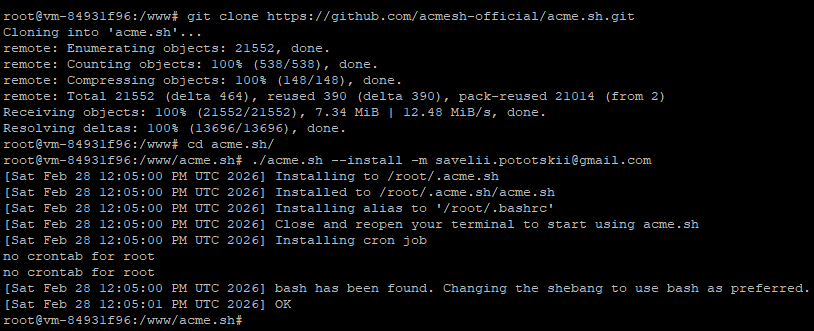
Cloning repository and installing acme.sh:
Using crontab -e, you can check whether acme.sh was successfully added to your crontab for automatic renewals:
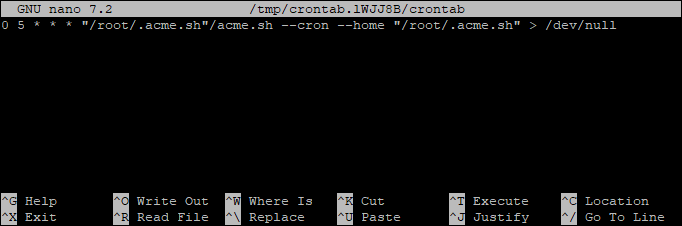
acme.sh has been installed. The next step is issuing certificates.
Issuing Let’s Encrypt certificates
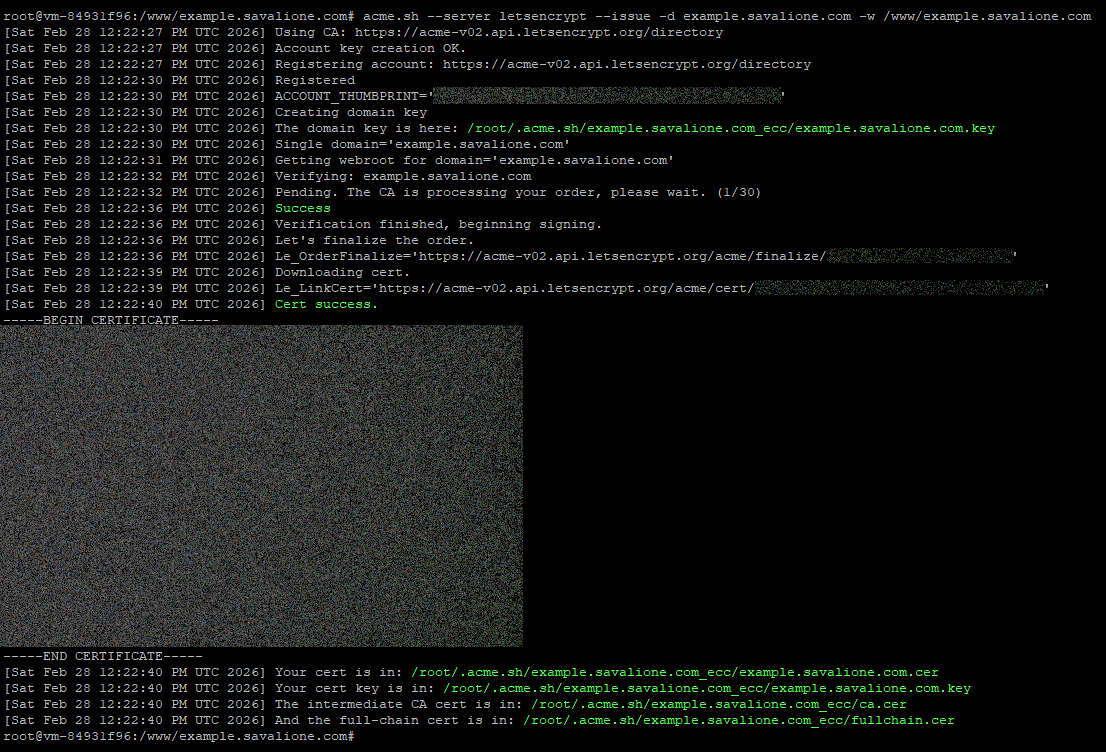
To issue a certificate, specify the CA server, the domain, and the location of your static files:
acme.sh --server letsencrypt --issue -d example.com -w /www/example.com
The SSL certificate has been issued using acme.sh:
Create a directory for storing the new certificates:
mkdir -p /etc/nginx/ssl/example.com
Install the certificate into the new directory and configure acme.sh to reload nginx automatically upon renewal:
acme.sh --install-cert -d example.com --key-file /etc/nginx/ssl/example.com/key.pem --fullchain-file /etc/nginx/ssl/example.com/fullchain.pem --reloadcmd "systemctl reload nginx"
The command above looks self explanatory.
The certificates for the domain are now located at /etc/nginx/ssl/example.com/.
It’s generally better to reload nginx rather than restart it during renewals to avoid dropping active connections.
Certificates have been installed:

Installing new certificates in nginx
The next step is to simply remove the parameters that were automatically added by Certbot from your site’s nginx configuration.
Edit the site’s nginx settings:
nano /etc/nginx/sites-available/example.com
Remove these Certbot specific lines:
ssl_certificate /etc/letsencrypt/live/example.savalione.com/fullchain.pem;
ssl_certificate_key /etc/letsencrypt/live/example.savalione.com/privkey.pem;
include /etc/letsencrypt/options-ssl-nginx.conf;
ssl_dhparam /etc/letsencrypt/ssl-dhparams.pem;
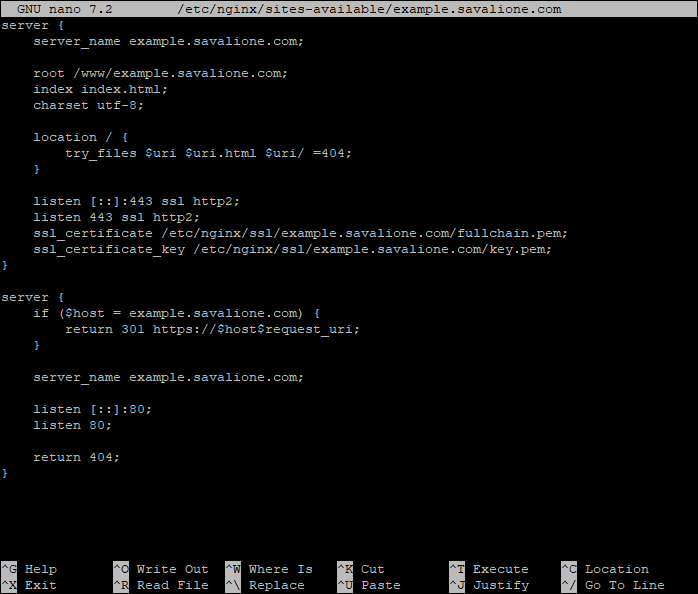
Add the paths to your new acme.sh certificates (replace the paths with your own):
ssl_certificate /etc/nginx/ssl/example.com/fullchain.pem;
ssl_certificate_key /etc/nginx/ssl/example.com/key.pem;
Optionally, you can add support for the HTTP/2 protocol and remove the ipv6only=on flag:
listen [::]:443 ssl http2;
listen 443 ssl http2;
Here is how the settings may look now:
Check that the nginx configuration is valid (nginx -t):

If the nginx configuration is valid, restart nginx:
systemctl restart nginx
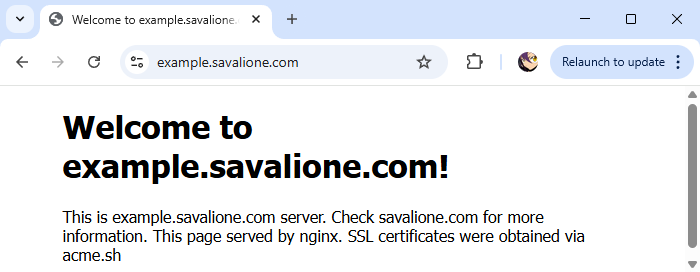
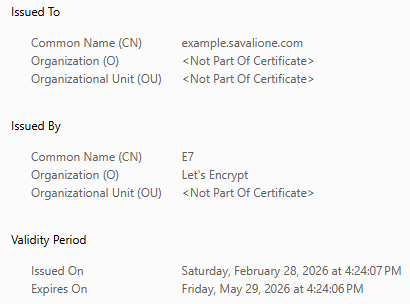
Now we can check the browser and see that the SSL certificate has been updated and the site works perfectly:
Uninstalling Certbot
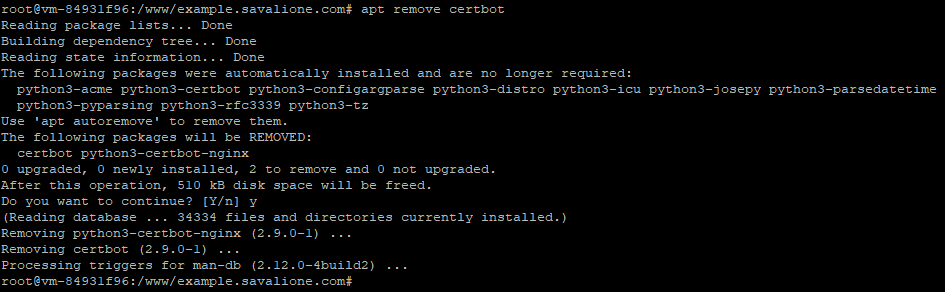
Be sure to migrate all of your websites from Certbot to acme.sh first. After that, you can safely remove Certbot, and all of your sites will continue to work seamlessly:
# For APT
apt remove certbot

# For Snap
snap remove certbot

# For Python package manager (pip)
pip3 uninstall certbot
Additionally, you can remove all the additional files and directories that were created by Certbot:
# Remove certificates and account configurations
rm -rf /etc/letsencrypt

# Remove renewal state data
rm -rf /var/lib/letsencrypt

# Remove Certbot logs
rm -rf /var/log/letsencrypt
Removing Certbot that was installed from an APT repository:
Congratulations, you’ve successfully migrated from Certbot to acme.sh: