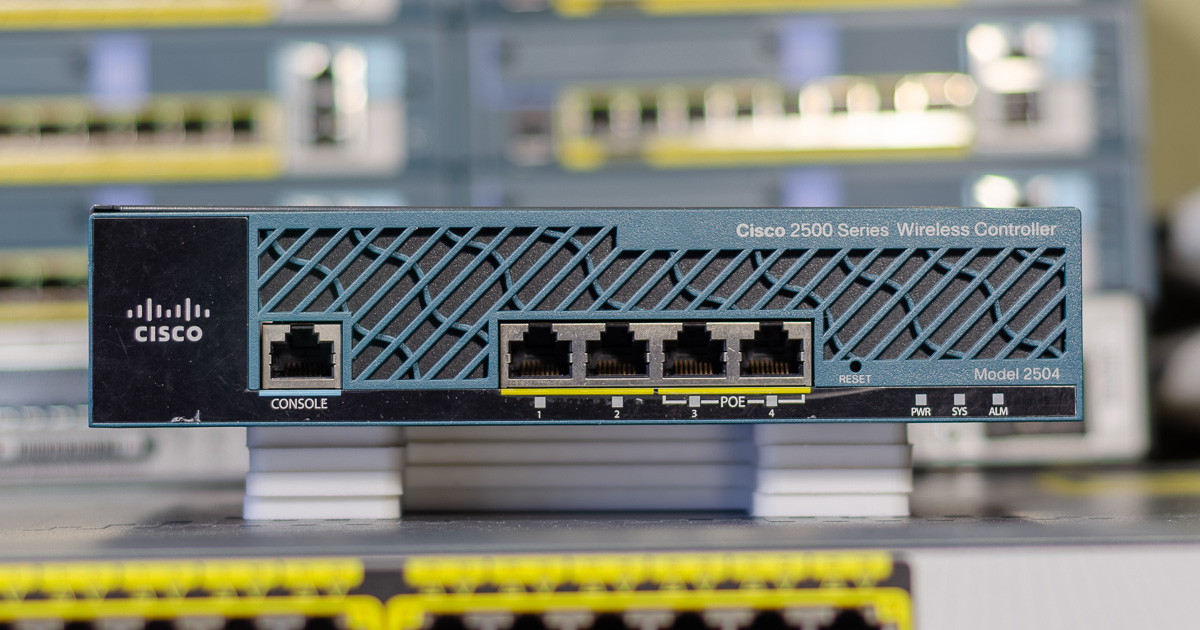
So, you’ve acquired a Cisco CT2504 Wireless Controller (WLC) and decided to set it up. A physical controller has a few advantages compared to a virtual one (vWLC). For example, you can use local mode (instead of FlexConnect) and you don’t have to deal with legacy virtual machines.
In this post, I’ll guide you through the initial steps of setting this controller up.
This post is divided into 5 steps:
- Preparing required tools and software.
- Resetting the controller so it doesn’t retain any configuration from the previous owner.
- Updating the firmware (FUS, AireOS, Bundle) to the latest available version (8.5.182.12).
- Resetting all settings again.
- Performing the initial setup.
The last section of the post provides some useful commands and solutions to common issues.
Preparing
My controller is a Cisco CT2504 (AIR-CT2504-K9).
It’s serial number is: PSJ1539020I.
The base permanent number of access points is 5, though through additional licenses, it can be increased up to 75.
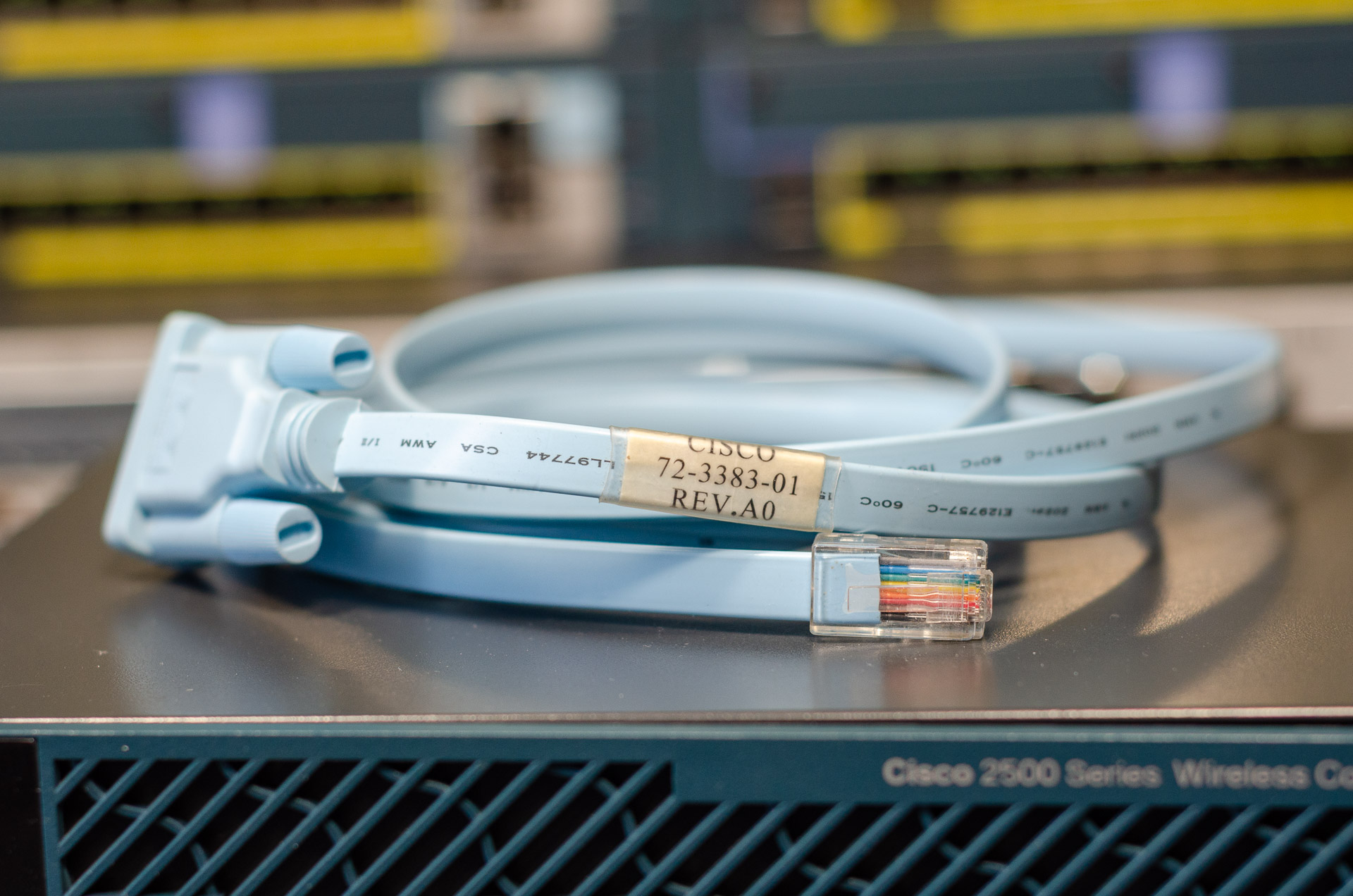
First of all, prepare an official Cisco rollover console cable.
I will be using 72-3383-01 (DB9 to RJ45):
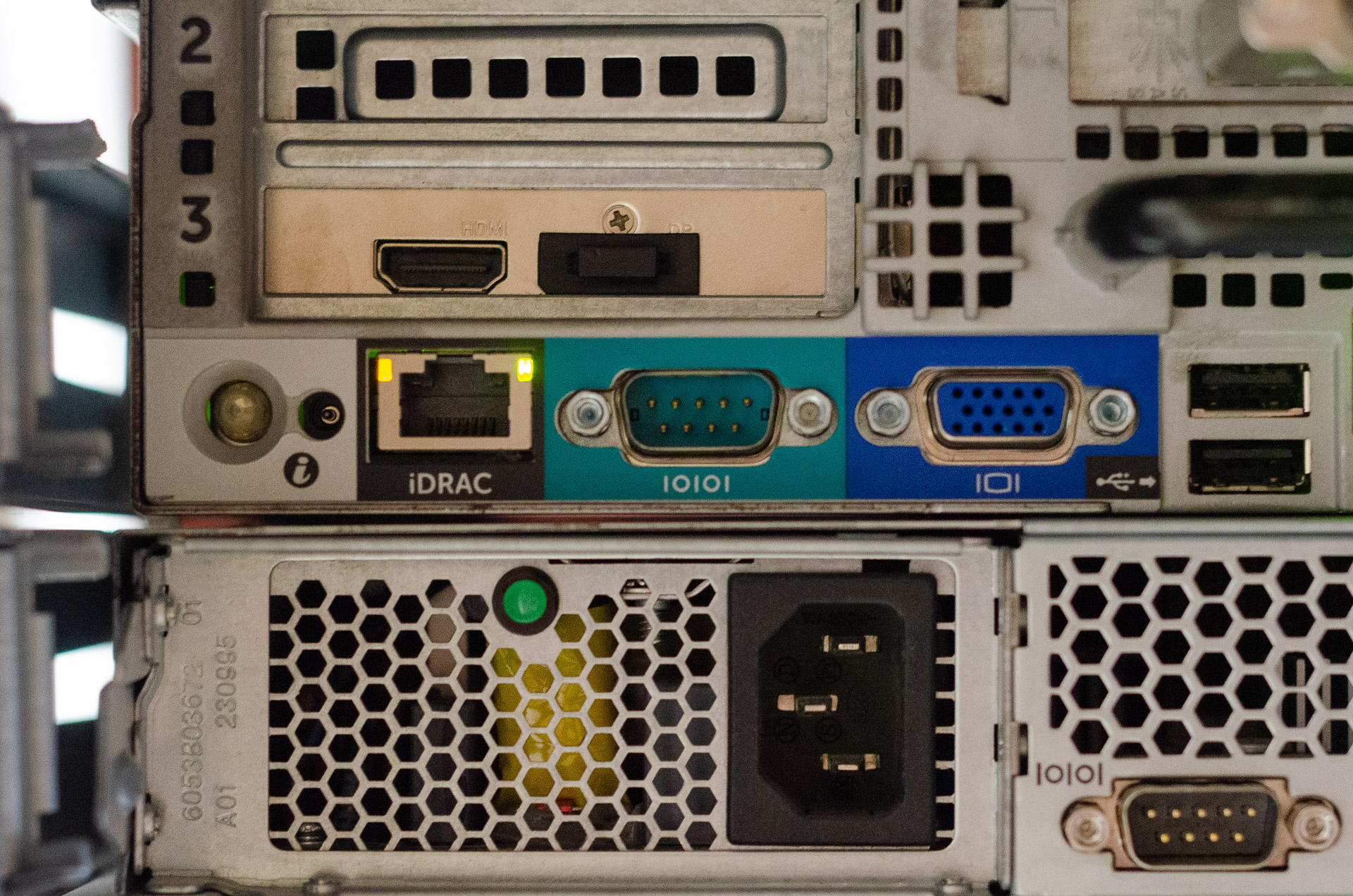
Because I am using a DB9 connector, I need a serial port. For this, I’ll be using a dedicated port on my Dell R720:
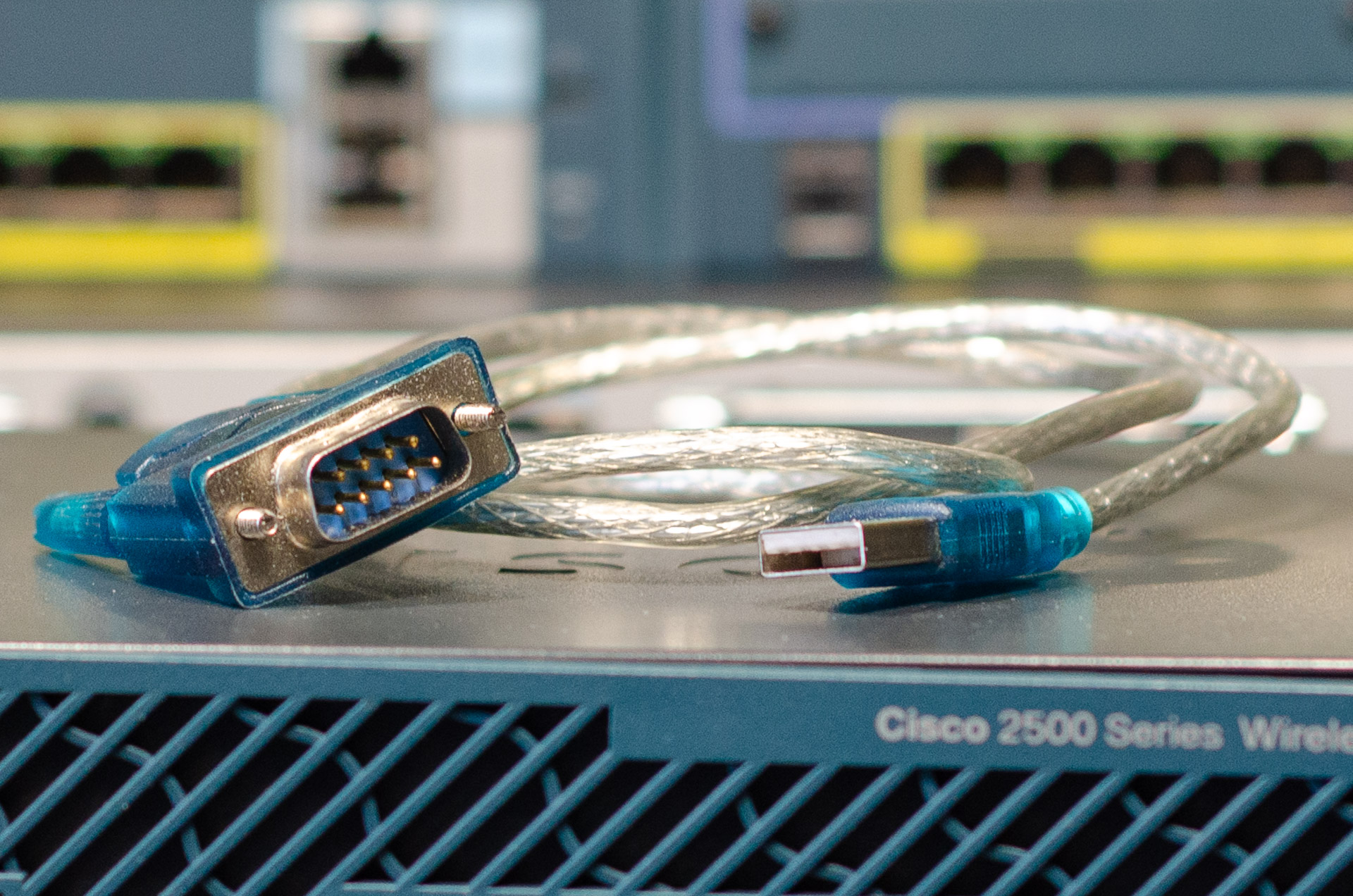
For some reason, Cisco APs and controllers are very sensitive to the serial cable and serial connection, so I highly advise you to use an official Cisco rollover cable. Also, if you use a DB9 connector, be sure to use a high quality port with good drivers. Something like a knockoff USB-to-DB9 cable without appropriate drivers for $3 almost certainly won’t work. For example, this cable didn’t work for me:
On the controller’s motherboard, an RTC battery is located.
It’s a regular CR2032 that you can find on many motherboards.
I recommend replacing it so you won’t have any clock related issues in the future.
Unscrew these bolts:
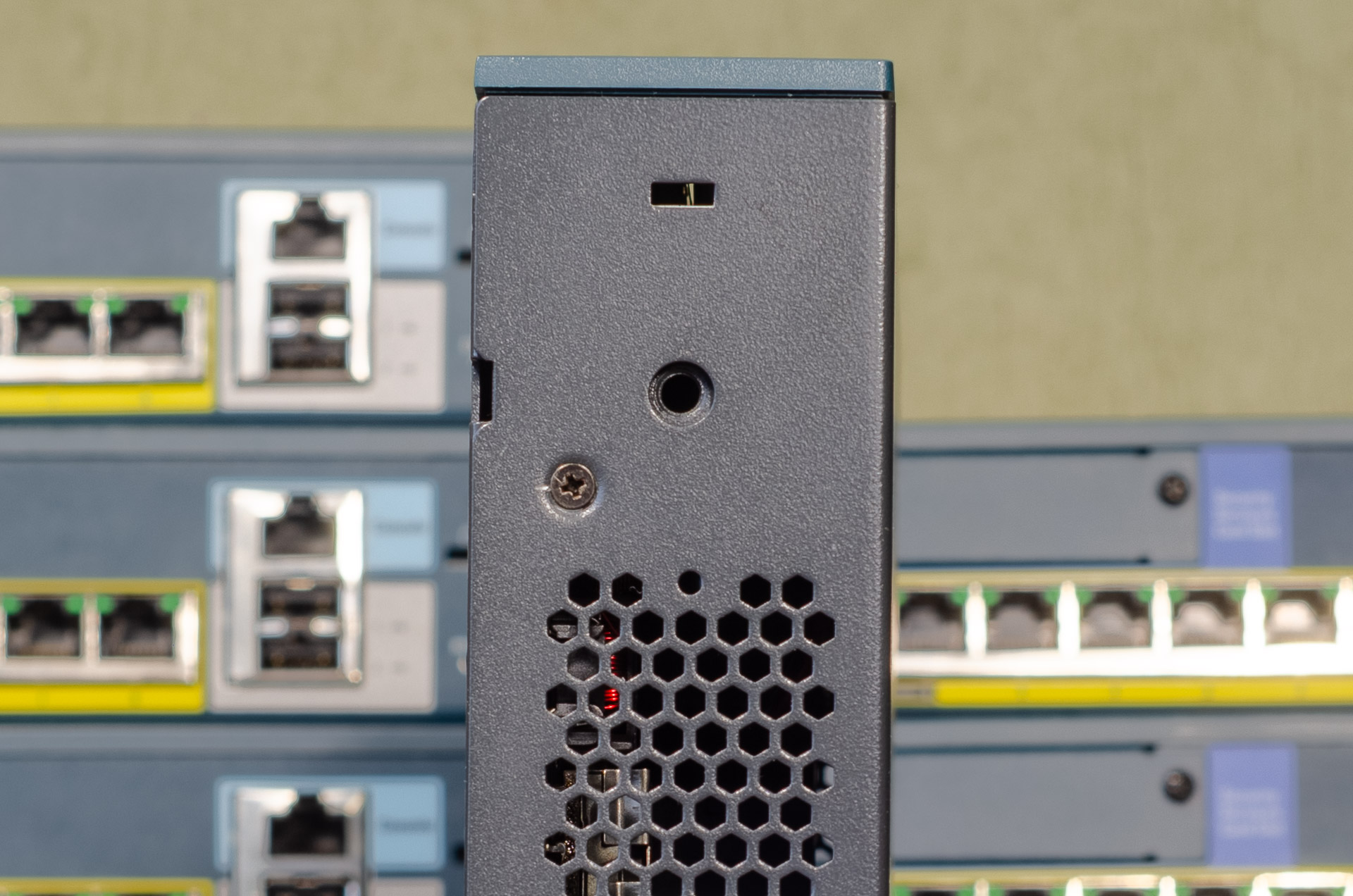
Gently remove the cover:
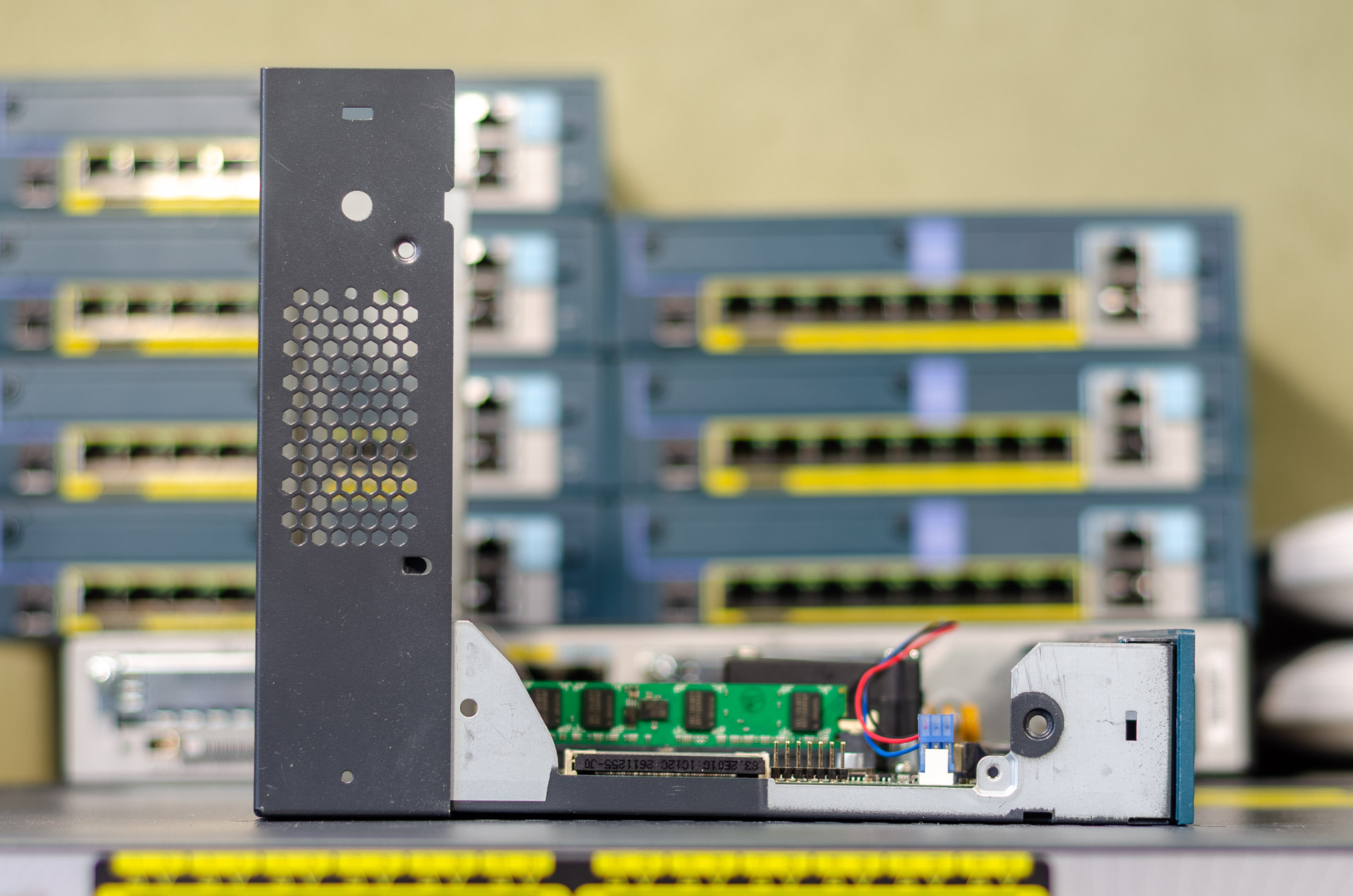
Here is the controller motherboard:
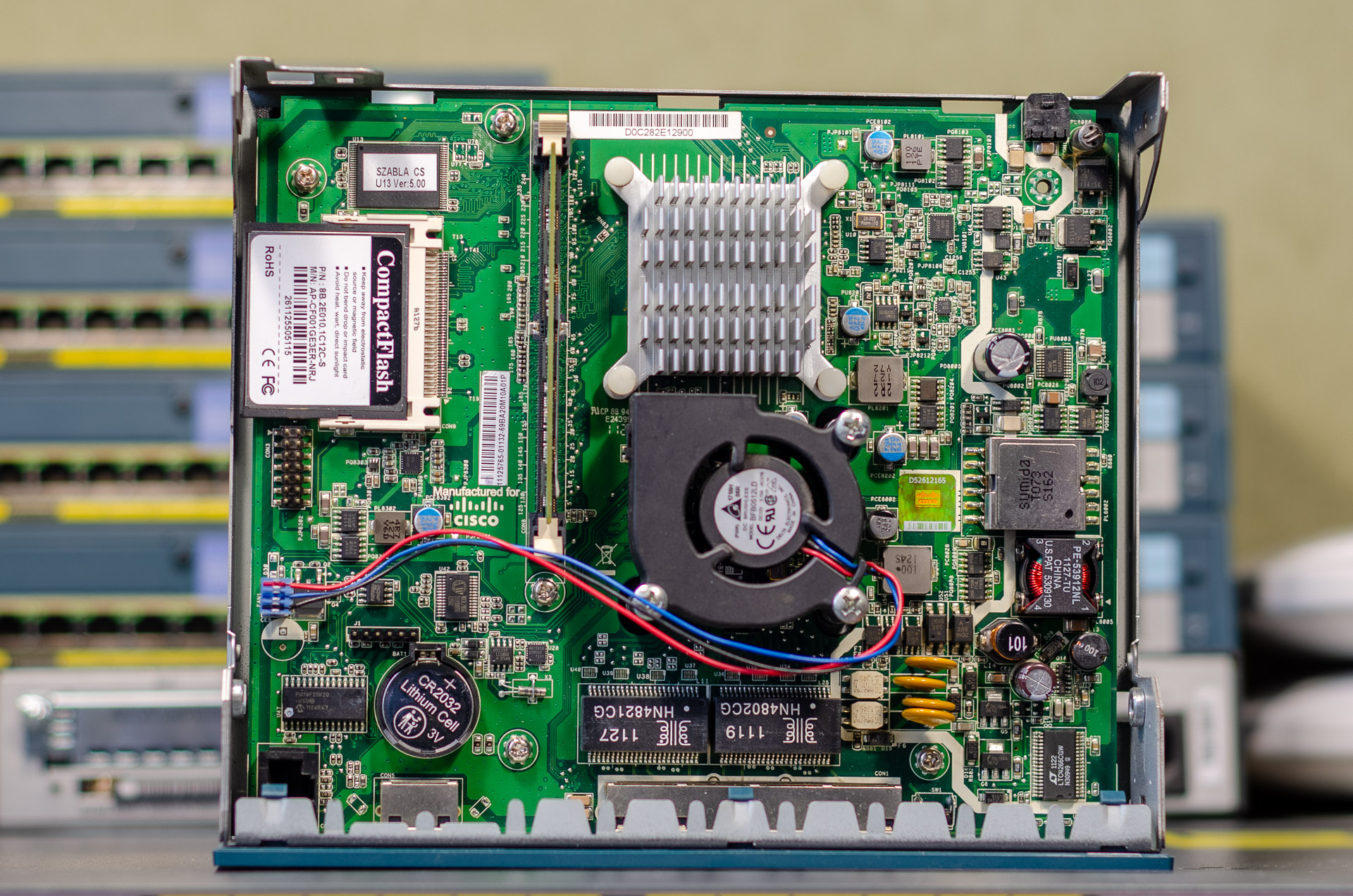
In the bottom left corner, you can see the battery. Replace it and reassemble everything in reverse order.
Next, prepare the firmware.
The latest available version of AireOS is 8.5.182.12, but you’ll also have to replace the FUS (Field Upgrade Software) firmware.
In this post, I’ll be updating firmware in the following order: FUS -> AireOS 8.5.182.0 -> AP bundle 8.5.182.0 (optional) -> AireOS 8.5.182.12.
You can download all required files on the Cisco website (only if you have a working service contract): https://software.cisco.com/download/home/283848165/type
Used files:
AIR-CT2500-K9-2-0-0-0-FUS.aes
    Description: Cisco Unified Wireless Network Field Upgrade Software Release 2.0 for Cisco 2500 Series Wireless LAN Controllers.
    MD5 Checksum: 2f11bdb166f374ed1b7fcd83b0e67d6e
    SHA512 Checksum: ada963c50e5396e4eb0e712afb3322008443b55aba99f48e2cd1c7e18b511e6f04051363d140784fca155948ce98087620130419204fbe72906ff78d3d3651fb
AIR-CT2500-K9-8-5-182-0.aes
    Description: Cisco 2500 Series Wireless Controllers Release 8.5 Software.
    MD5 Checksum: 0ec0927df061c754ebbd9c5baa9047ad
    SHA512 Checksum: 8de868143326d027b175f99801287b7e65d0d4dced47c40a77fd7142d2eded1cceeda53e17813e13efaa4d27bd6eebc4158f9e9c23965f2f64b56f291b623486
AIR-CT2500-AP_BUNDLE-K9-8-5-182-0.aes
    Description: Supplementary AP Bundle Images for Cisco 2504 Series WLC Release 8.5. This bundle is mandatory to support AP802,AP803,AP1530, AP1550 , AP1570 and AP1600.
    MD5 Checksum: 304e1e7e0ed953da1fe447f3ef897825
    SHA512 Checksum: 3bcb44091d79402eeb695b46cdf76611ea76aa2a78230662ce895a77f5243bfcdab030378c89c2e2b08da8cc44fb12f6b0c16e84b012b01ac0a120488eb40174
AIR-CT2504-K9-8-5-182-12.aes
    Description: Addendum Release Notes for Cisco Wireless LAN Controllers and Lightweight Access Points for Special Build 8.5.182.12
    MD5 Checksum: c94c5d965787997111de3d5f7235926d
    SHA512 Checksum: f91df2457483e228ff2fc6e9735eb62c0aba49bb8e409daf6b1ac94417996d7f4be3f53200317ebc9702c4a255afe0f18c054f22828392e6418807d0d4a444ff
The firmware should be uploaded to a TFTP server.
My server is located at 192.168.56.3 and served by tftpd-hpa.
Connect to the controller via the console
I’ll be using minicom to do this:
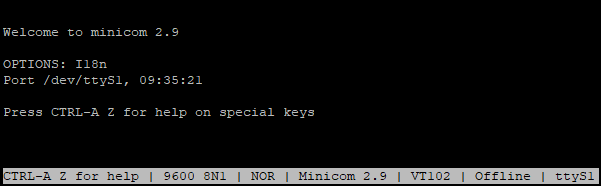
To start minicom, use:
sudo minicom -D /dev/ttyS1 -b 9600
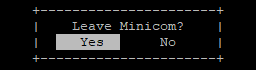
To exit, press CTRL+A, then X, and confirm that you want to exit:
Reset current configuration
Even if you know the credentials, it’s a good idea to reset the current configuration so there are no issues when the files are downloaded from the TFTP server (for example, when clients attempt to access a network, or multiple APs simultaneously download firmware). There are multiple ways to do this:
- Intercept booting by pressing the
ESCbutton and entering the Boot Loader Menu. - Entering
Recover-Configas the username (this works only once after the controller is reloaded). - Via the WebUI:
Advanced -> Commands -> Reset to Factory Default.
I’ll be resetting the configuration via the Boot Loader Menu.
Simply press ESC and power on the controller.
Shortly after, you’ll see the menu:
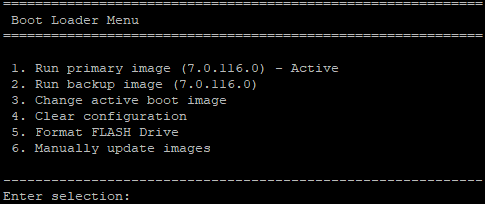
Here, press 4 (Clear configuration):
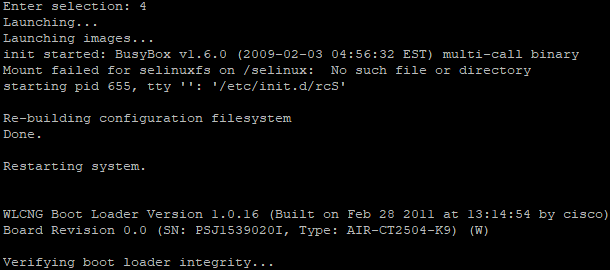
After a successful reset, the system will boot and prompt for auto install:

It’s not possible to skip this process:
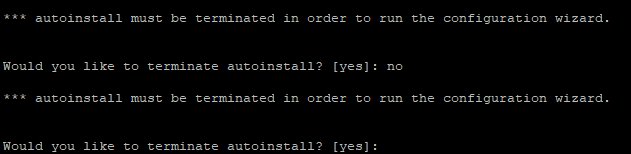
Simply set up the controller enough so that it can connect to the TFTP server:
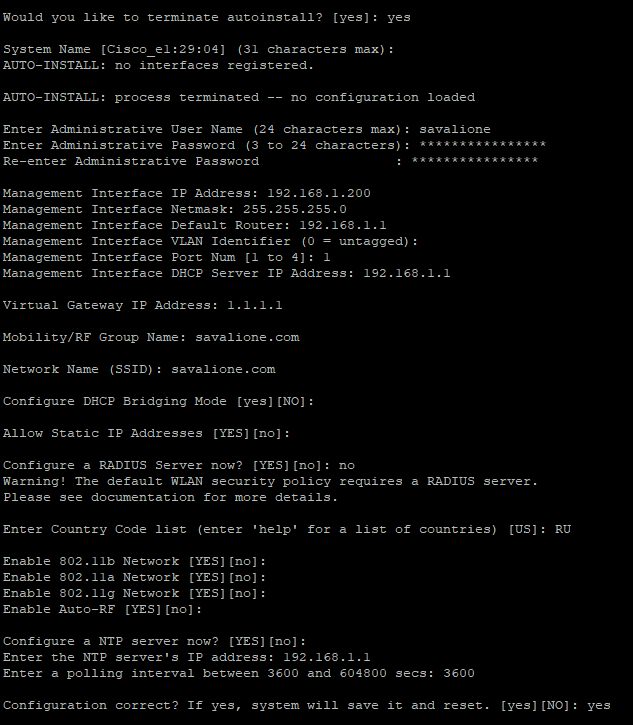
Updating FUS
First of all, the FUS (Field Upgrade Software) needs to be updated.
To update FUS, do the following:
transfer download mode tftp
transfer download datatype code
transfer download serverip 192.168.56.3
transfer download filename AIR-CT2500-K9-2-0-0-0-FUS.aes
transfer download start
The controller will ask you whether you want to start the download:
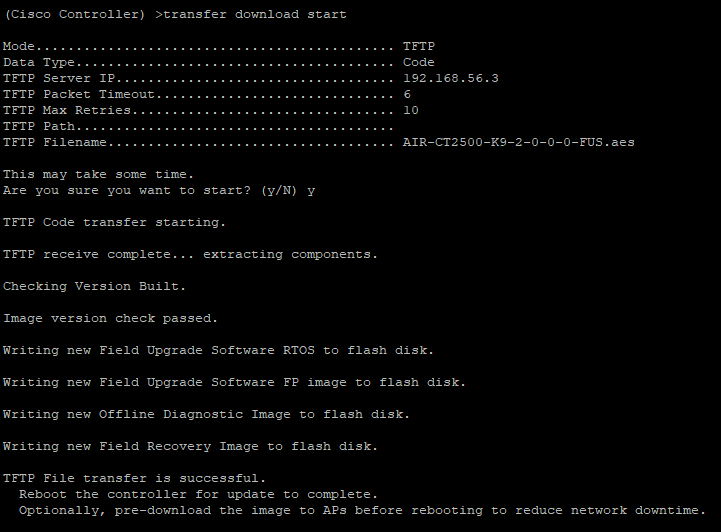
Press y.
You can verify that the file is being downloaded from your TFTP server:

Then, reboot the system:
reset system
Press y again to confirm all configuration changes:
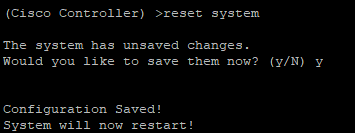
On the first boot after uploading the FUS, you’ll see a message about the FUS updating:
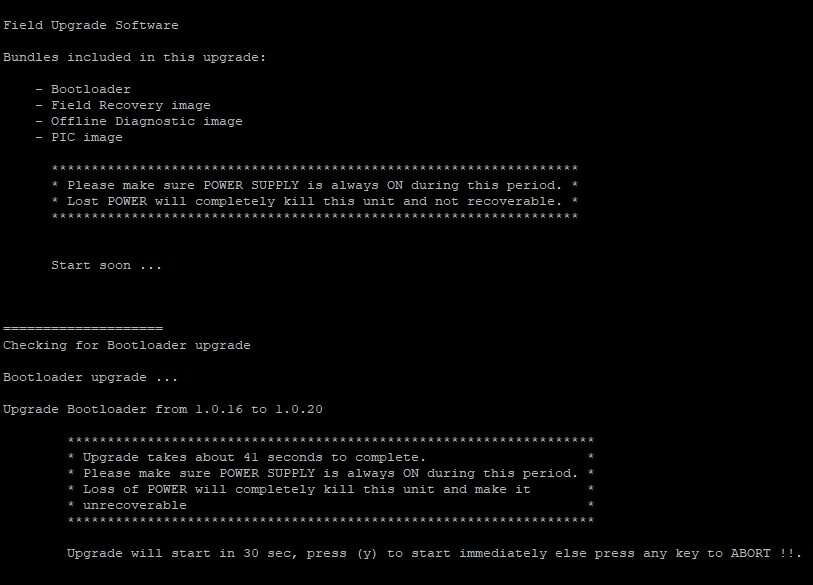
Make sure the controller does not lose power during the FUS update.
Shortly after, the FUS will finish updating:
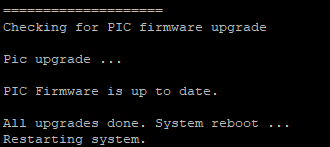
You can compare the boot logs to verify that the FUS was indeed updated:
WLCNG Boot Loader Version 1.0.16 (Built on Feb 28 2011 at 13:14:54 by cisco)
WLCNG Boot Loader Version 1.0.20 (Built on Jan 14 2014 at 11:40:45 by cisco)
Updating AirOS
After updating FUS, it’s time to update AireOS.
I updated AireOS from version 7.0.116.0 to 8.5.182.0, and then to 8.5.182.12.
I’m not sure if skipping version 8.5.182.0 is possible, but the first 8.5.182.0 boot took a really long time due to the configuration update process.
Just to be safe, we’ll update to 8.5.182.0 first.
To update AireOS, do the following:
transfer download mode tftp
transfer download datatype code
transfer download serverip 192.168.56.3
transfer download filename AIR-CT2500-K9-8-5-182-0.aes
transfer download start
The system will again ask you if you want to start the download (press y):
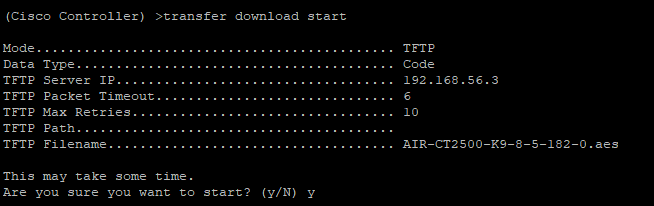
Reboot the system:
reset system
After rebooting, you can see the new version in the logs:
Press <ESC> now to access the Boot Menu...

Loading primary image (8.5.182.0)
100%

38700281 bytes read
Running show sysinfo also confirms this:
(Cisco Controller) >show sysinfo

Manufacturer's Name.............................. Cisco Systems Inc.
Product Name..................................... Cisco Controller
Product Version.................................. 8.5.182.0
Bootloader Version............................... 1.0.20
Field Recovery Image Version..................... 7.6.101.1
Firmware Version................................. PIC 16.0
Next, update the bundle:
transfer download mode tftp
transfer download datatype code
transfer download serverip 192.168.56.3
transfer download filename AIR-CT2500-AP_BUNDLE-K9-8-5-182-0.aes
transfer download start
The system will again ask you if you want to start the download (press y):
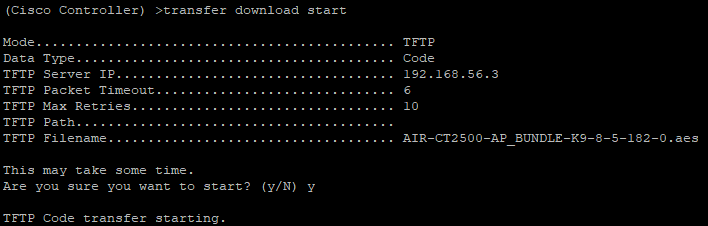
Reboot the system:
reset system
Next, update AireOS from 8.5.182.0 to 8.5.182.12:
transfer download mode tftp
transfer download datatype code
transfer download serverip 192.168.56.3
transfer download filename AIR-CT2504-K9-8-5-182-12.aes
transfer download start
The system will again ask you if you want to start the download (press y):
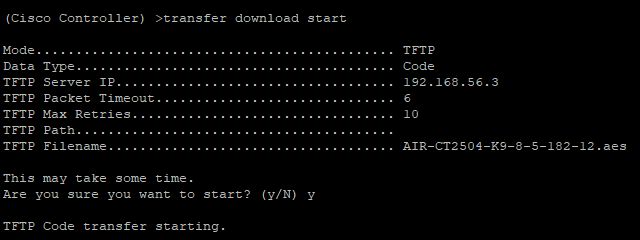
Reboot the system:
reset system
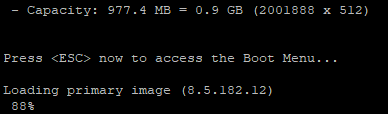
After rebooting, you will see the new version in the logs, which is the last version ever released for the Cisco CT2504 (8.5.182.12):
Resetting system to the factory defaults (again)
I recommend resetting the system to factory defaults again so there are absolutely no issues with the controller caused by the old configuration or the version merging and updating process. The controller will feel like a brand new device with the latest possible firmware.
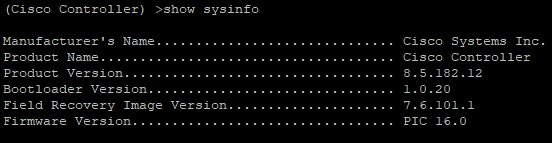
Here is the final result (show sysinfo):
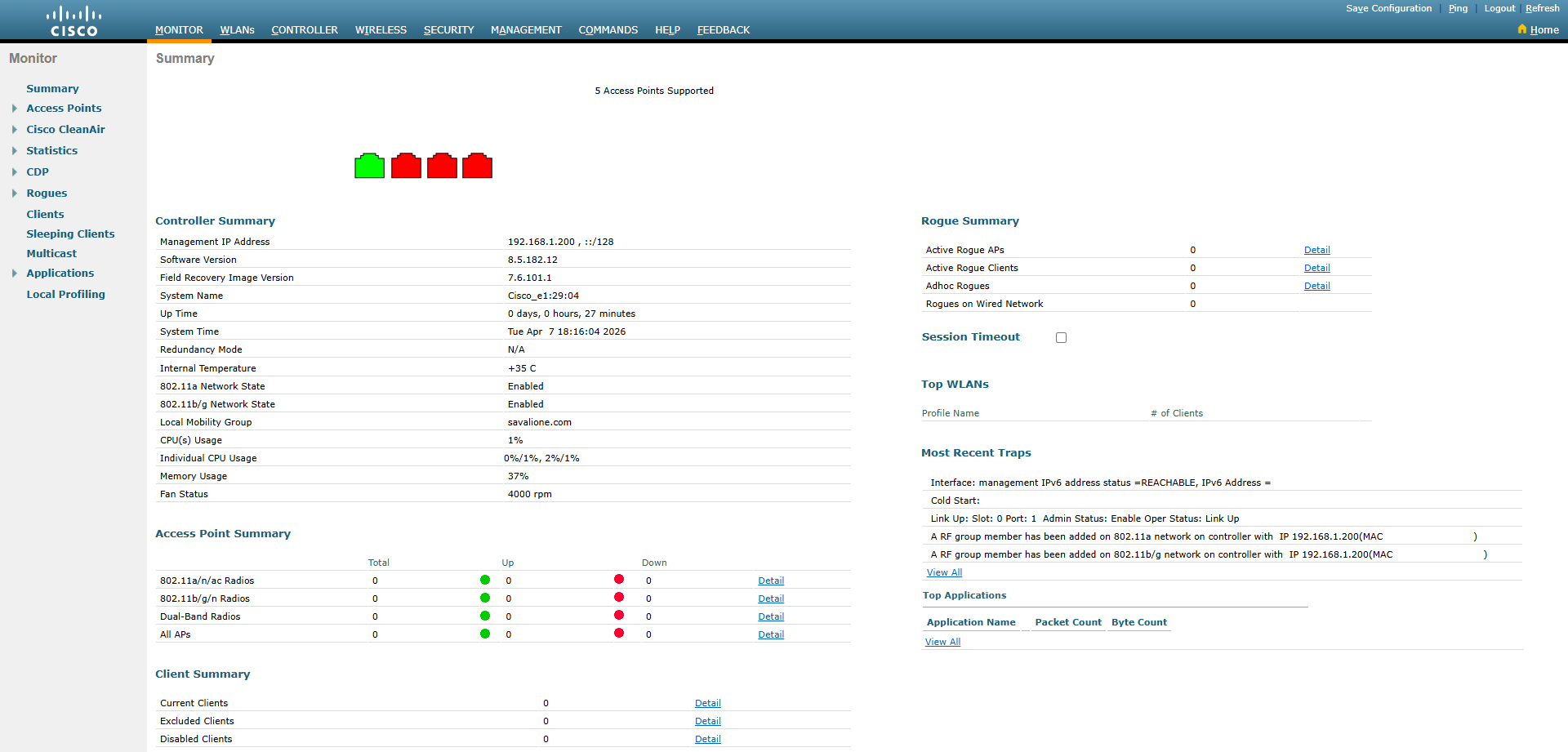
After completing the autoinstall prompt, you can continue setting up the controller via the web interface:
Useful controller commands
Reboot the controller:
reset system
Show all licenses:
show license all
Show system information:
show sysinfo
Show all access points:
show ap summary
Reboot an access point:
config ap reset <AP>
Log all CAPWAP events (the protocol used to exchange information between a controller and an AP):
debug capwap events enable
debug capwap errors enable
To disable all logs:
debug disable-all
Increase session IDLE timeout (to 160 minutes):
config sessions timeout 160
Convert all APs to FlexConnect mode automatically (particularly useful for vWLC):
config ap autoconvert flexconnect
How to configure FlexConnect if the DHCP server doesn’t support Option 43
You can use a DNS server, just create a couple of records pointing to the controller.
For example:
CISCO-CAPWAP-CONTROLLER     net.savalione.com   192.168.1.200
CISCO-CAPWAP-CONTROLLER     savalione.com       192.168.1.200
CISCO-CAPWAP-CONTROLLER     localdomain         192.168.1.200
How to check MD5 and SHA512 checksums
Use md5sum and sha512sum:
md5sum AIR-CT2500-AP_BUNDLE-K9-8-5-182-0.aes AIR-CT2500-K9-2-0-0-0-FUS.aes AIR-CT2500-K9-8-5-182-0.aes
sha512sum AIR-CT2500-AP_BUNDLE-K9-8-5-182-0.aes AIR-CT2500-K9-2-0-0-0-FUS.aes AIR-CT2500-K9-8-5-182-0.aes
Here is how it looks on my server:

What to do if there is no console/serial output
First of all, check the rollover cable. Use only official Cisco cables.
Also, avoid using third-party USB-to-DB9 adapters, such as this:
Why can’t APs connect to the controller?
This can be due to a huge version mismatch between the controller and the AP. To solve this issue, manually update the firmware on the AP.
It can also be due to certificate issues. You can try to disable the certificate check or manually update the AP’s firmware to the same version installed on the controller.
To disable the certificate check, run:
config ap cert-expiry-ignore mic enable
config ap cert-expiry-ignore ssc enable
save config