I recently bought some old networking equipment and decided to test it (raw throughput, NAT, firewall). One of the best tools for this is Cisco TRex, an open source L3-7 traffic generator. TRex uses DPDK as its primary backend, so before getting started with the traffic generator, DPDK must be installed.
In this post, I will show you how to compile and install DPDK from scratch on an Ubuntu 24.04 LTS server.
This post is divided into 4 steps:
- Enabling IOMMU (recommended for full throughput)
- Reserving hugepages (recommended for optimal performance)
- Compiling and installing DPDK
- Installing dependencies
- Obtaining DPDK source code
- Compiling DPDK
- Configuring DPDK
The final section of this post provides some useful commands.
IOMMU configuration
On most systems, IOMMU is enabled by default, especially on AMD based machines.
To check the IOMMU status on an Intel based machine, use:
dmesg | grep -i dmar
On an AMD based machine, use:
dmesg | grep -i amd-vi
You can also use these commands to check the number of IOMMU groups and verify if they are enabled in the kernel boot parameters:
ls /sys/kernel/iommu_groups/
cat /proc/cmdline
The screenshot below shows the IOMMU status on my machine:
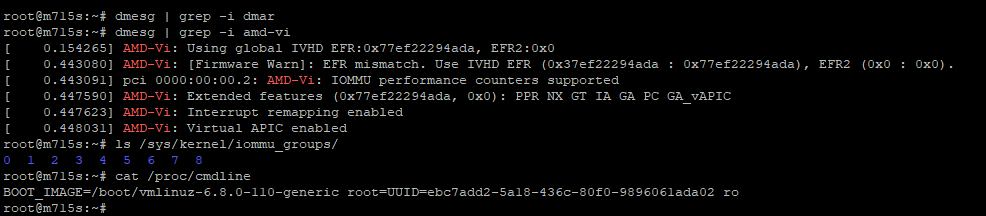
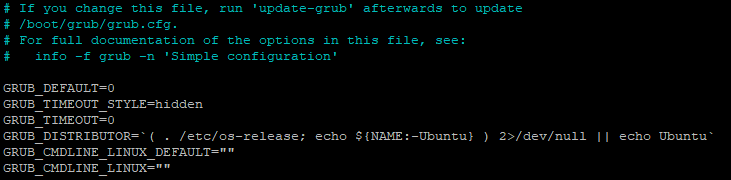
I am using an AMD based machine, which does not require additional kernel parameters:
If the (dmesg) commands above return nothing, you may need to enable IOMMU, particularly if you are using an Intel, ARM, or RISC-V processor.
To explicitly enable IOMMU on an Intel processor, modify your kernel boot parameters. Open your GRUB configuration file:
nano /etc/default/grub
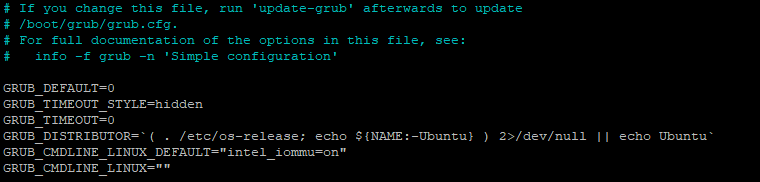
Find the GRUB_CMDLINE_LINUX_DEFAULT line and add intel_iommu=on inside the quotes:
Update the GRUB configuration:
update-grub
Restart the system:
systemctl reboot
After enabling IOMMU on an HP server with Intel processors, the boot log looks like this:
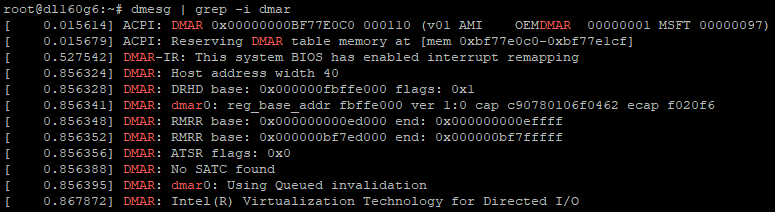
If you can't enable IOMMU or your system does not support it, you can still use DPDK, but performance will be degraded and it's generally considered less secure.
Reserving hugepages (HugeTLB Pages)
Using hugepages is optional but highly recommended, as it allows a large, reserved chunk of memory to be managed entirely by DPDK.
First, check if your CPU supports hugepages:
cat /proc/cpuinfo | grep "pse"
cat /proc/cpuinfo | grep "pdpe1gb"
Here, pse indicates 2MB hugepage support, and pdpe1gb indicates 1GB support.
On my system, pse and pdpe1gb pages are supported:

You can find additional information about hugepages in /proc/meminfo:
cat /proc/meminfo | grep Huge`
Before reserving hugepages, the meminfo may look like this:
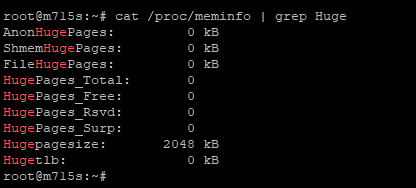
There are several ways to reserve hugepages. In this section, I will do so using kernel boot parameters.
Open the GRUB configuration file again:
nano /etc/default/grub
Add default_hugepagesz=2M hugepagesz=2M hugepages=512 to the GRUB_CMDLINE_LINUX_DEFAULT line:
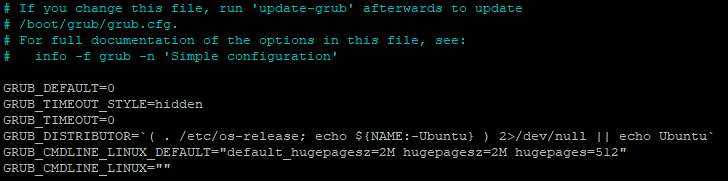
Here, hugepages=512 defines the number of hugepages, default_hugepagesz=2M sets the default hugepage size, and hugepagesz=2M specifies the hugepage size to allocate.
For example, on my Intel server, I reserved 4 pages 1GB each (default_hugepagesz=1G hugepagesz=1G hugepages=4):
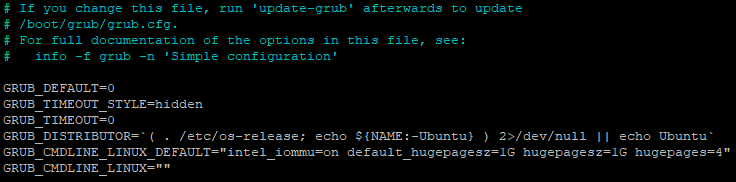
Update the GRUB configuration:
update-grub
Restart the system:
systemctl reboot
Verify the reserved pages:
cat /proc/meminfo | grep Huge
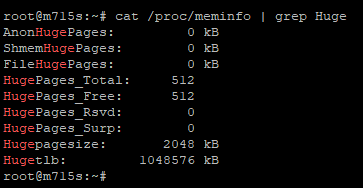
Here is how reserved pages look on my system:
Installing dependencies
DPDK can be compiled with GCC or Clang.
To keep things simple, I will use GCC, which is provided by the build-essential package.
Install the required dependencies:
apt install build-essential meson ninja-build python3-pyelftools libnuma-dev
Here is a brief description of the packages:
-
build-essential- general development tools (GCC, make). -
meson ninja-build- build systems. -
python3-pyelftools- parsing and analyzing ELF. -
libnuma-dev- library for handling NUMA.
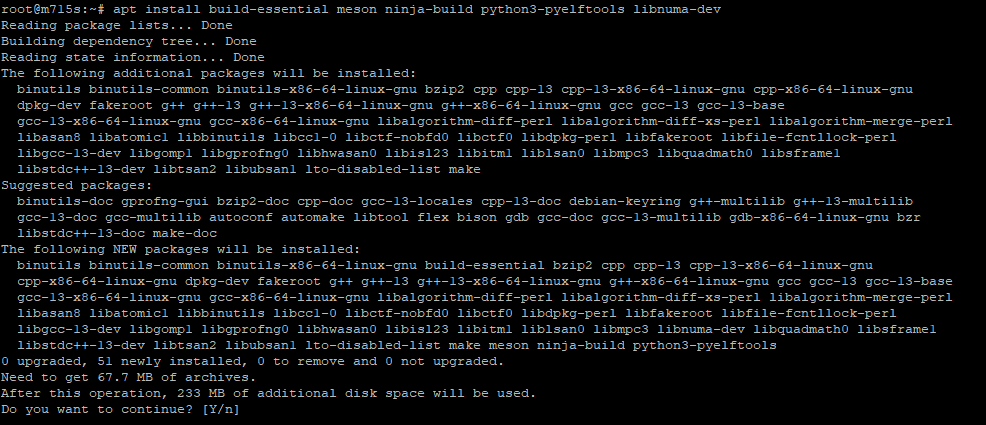
Here is the APT output showing the packages and dependencies that will be downloaded and installed:
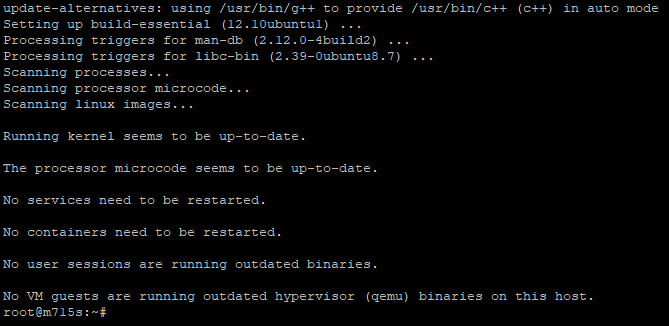
All packages have been installed:
Obtaining DPDK source code
Next, you need to obtain the DPDK source code.
You can just download the archive and unpack it:
tar xJf dpdk-<version>.tar.xz
cd dpdk-<version>
While you can download a tarball, I prefer cloning the repository directly from git to ensure I am on the latest stable version.
At the time of writing this post, the latest version is v26.03.
Using git, download the source code and switch to the stable tag:
git clone --branch v26.03 --recursive https://github.com/DPDK/dpdk.git
The repository is being cloned:

Enter the directory:
cd dpdk
Check that you're on the stable tag:
git describe --tags --exact-match
The repository is on the v26.03 tag right now:

Compiling DPDK
Right now you should be in the directory containing the DPDK source code.
Check the possible configuration options:
meson configure
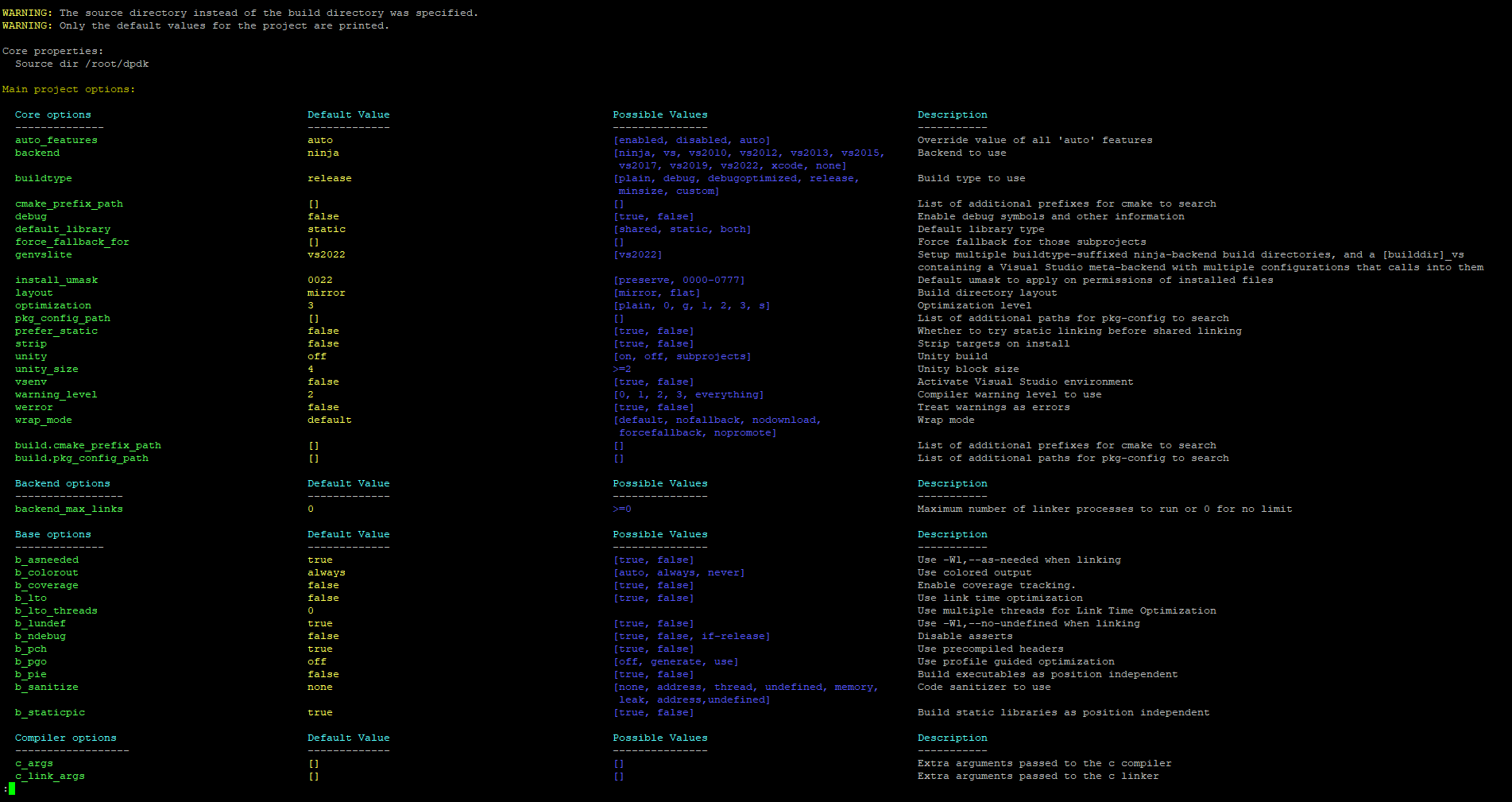
There are many configuration options:
You don't have to change anything, but if you need to customize the build, use the following command:
meson setup <options> build
Build the project:
meson setup build
You'll have to wait a moment while meson configures the project and generates the ninja build scripts.
It's also a great idea to check which drivers will be compiled:
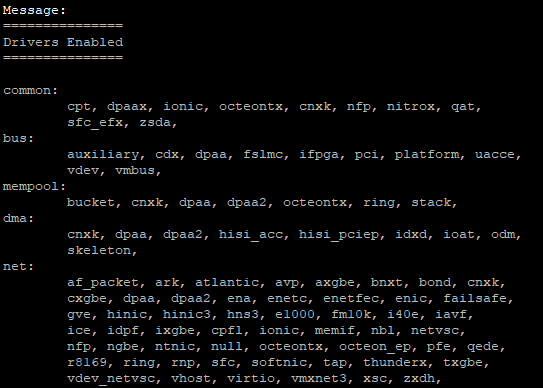
Switch to the build directory:
cd build
Finally, compile DPDK:
ninja
You can see that DPDK has been compiled:

Install DPDK:
meson install
DPDK has been installed:

Update the linker run time bindings:
ldconfig
Check that DPDK has been successfully installed:
dpdk-devbind.py --status
You can see that DPDK is working properly:

Configuring DPDK
After completing the steps above, your DPDK environment should be ready. In this optional section, I'll show you how you can interact with DPDK.
Allocate hugepages for DPDK:
dpdk-hugepages.py --setup 1G
Load the VFIO driver:
modprobe vfio-pci
Check DPDK devices:
dpdk-devbind.py --status
After loading the VFIO driver, you can see that vfio-pci appeared in the unused= section:

At this step, it may be a good idea to obtain the devices' MAC addresses, because after binding an interface to DPDK, it won't be that simple to find out its MAC address:
ip addr
Bind NICs to the VFIO driver:
dpdk-devbind.py -b vfio-pci 0000:09:00.0 0000:09:00.1
Here, 0000:09:00.0 and 0000:09:00.1 are the NICs I'm binding to DPDK.
Check DPDK devices again to see that the NICs have been successfully bound to DPDK:
dpdk-devbind.py --status
Network devices are using a DPDK-compatible driver:

In dmesg, you can see that the VFIO driver was successfully loaded and the NICs were detached from the Intel igb driver:

On my Intel HP server with multiple NICs, you can see that e1000e devices now use vfio-pci:
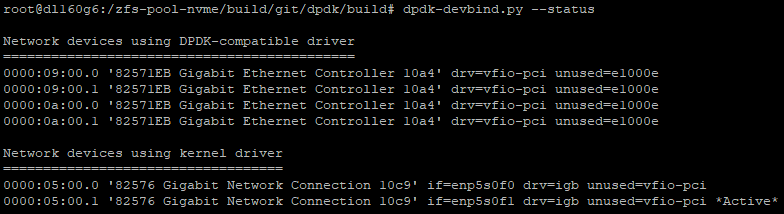
That’s basically it. You've successfully compiled, configured, and installed DPDK from scratch!
In the future, I will demonstrate how to use DPDK with Cisco TRex. Thanks to the DPDK architecture, the initial configuration is now complete, and we can focus on the integration.
How to reserve hugepages right away (without rebooting)
On a single node system:
echo 1024 > /sys/kernel/mm/hugepages/hugepages-2048kB/nr_hugepages
Here, 1024 represents the number of 2048kB pages.
The example above reserves 2GB (1024 * 2048kB) of memory.
On a NUMA system:
echo 1024 > /sys/devices/system/node/node0/hugepages/hugepages-2048kB/nr_hugepages
echo 1024 > /sys/devices/system/node/node1/hugepages/hugepages-2048kB/nr_hugepages
Here you can see that hugepages are reserved for each NUMA node (node0, node1).
See HugeTLB Pages for more information.
How to reserve hugepages via DPDK (dpdk-hugepages.py)
DPDK provides a script for working with hugepages (dpdk-hugepages.py).
This script can reserve pages:
dpdk-hugepages.py --reserve=2G
See dpdk-hugepages Application for more information.
How to reserve hugepages via kernel boot parameters on a NUMA architecture
Just specify NUMA nodes in the kernel boot settings of the hugepages parameter:
hugepages=0:1,1:2
Here, 0 stands for NUMA node0, and 1 for NUMA node1.
So, on node0 a single page will be allocated, and on node1 two pages will be allocated.
See HugeTLB Pages for more information.