I have a dedicated server for testing purposes.
The server is an old HP ProLiant DL160 G6 with two Intel Xeon X5650 CPUs and 48GB RAM.
It is often used to compile some code (Go, C++, drivers) and test network devices (DPDK, Cisco TRex).
It has no sophisticated services on it and is meant to be disposable, and that's why I decided to upgrade it from Ubuntu 24.04 LTS to 26.04 LTS using the default Ubuntu upgrade tool (do-release-upgrade).
In this post I'll go through all the steps needed to upgrade a system from 24.04 to 26.04.
Some considerations you need to take into account before doing a similar upgrade:
- Even though the 26.04 LTS release was released on April 23, 2026, as of today (June 20, 2026) it is still considered to be in a development state. So in order to upgrade the system, I had to add the
-dflag todo-release-upgrade. - The success of the upgrade depends on many factors, including the number of installed packages, their configuration, the machine's age, etc. As a general rule, the fewer custom packages you have, the fewer issues you will have.
- Most of the time, such an upgrade on a production server is not a great idea, so I discourage doing so.
- Even though many teams work to make such an upgrade seamless, you should be ready to manually fix some services or potentially lose all data.
This post is divided into two steps:
- Initial preparations
- Upgrading the Ubuntu distribution
At the end of this blog post, you will also find some common issues and ways to fix them.
About the server
The server hasn't been updated in months.
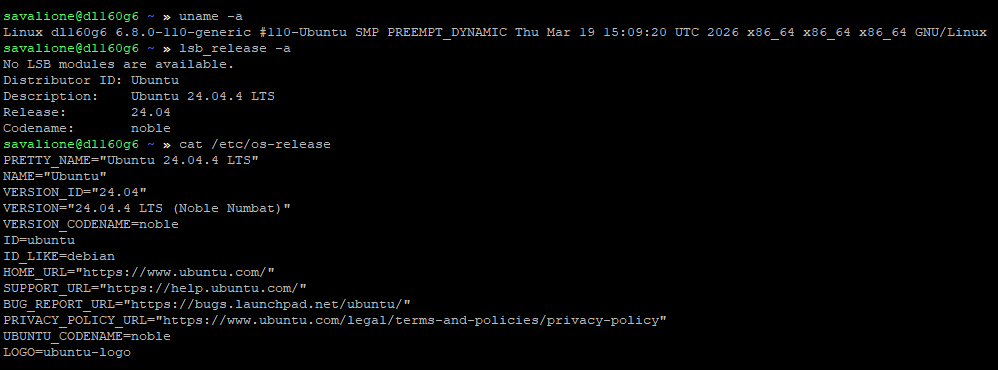
The Linux kernel version is 6.8.0-110-generic and many packages require an update.
You can check information about your system using:
uname -a
lsb_release -a
cat /etc/os-release
On my server everything looks like this right now:
Initial preparations
The first thing you should really consider doing is a full backup of everything. Doing a distribution upgrade may corrupt important data or make your machine not bootable.
Then, you need to update and upgrade all packages.
Update the local package index and download the latest information about the packages:
apt update
Apt will show the status of the operation and the number of packages that can be upgraded:

Upgrade all packages:
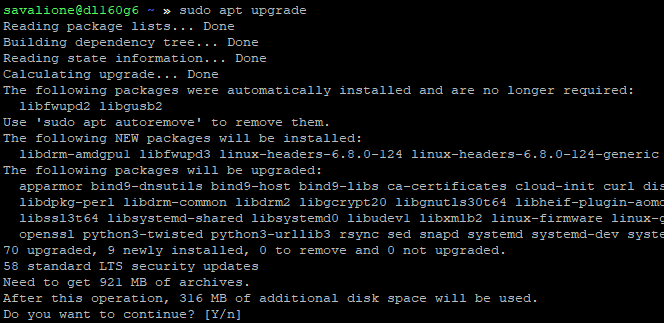
apt upgrade
Before upgrading packages, apt will show additional information and will wait for user confirmation to continue the upgrade:
After a successful upgrade, I noticed that the new Linux kernel version was available:

To boot into the new kernel, the system should be rebooted:
systemctl reboot
After rebooting, you can see that the system booted into the new kernel:

I also recommend removing the packages that are no longer needed:
apt autoremove
Upgrading the Ubuntu distribution
As I already mentioned, the distribution upgrade process will solely depend on your particular setup.
Also, because there is no 26.04.01 LTS yet, I had to add the -d flag to the do-release-upgrade command which makes everything a little bit more unstable.
You may not need to add this flag.
Upgrade the distribution:
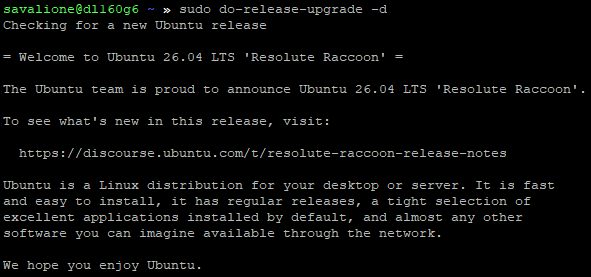
do-release-upgrade
You'll be provided with the new release information:
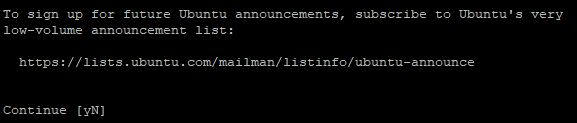
To start the whole process, you'll have to continue (type y and press enter):
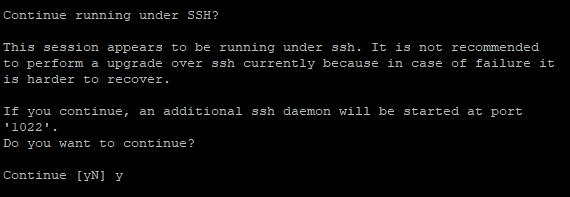
The tool may tell you that it is not safe to upgrade the distribution via SSH, and a new ssh server instance should be created on a custom port:
Continue running under SSH?

This session appears to be running under ssh. It is not recommended
to perform a upgrade over ssh currently because in case of failure it
is harder to recover.

If you continue, an additional ssh daemon will be started at port
'1022'.
Do you want to continue?

Continue [yN]
Continue the installation (type y and press enter):
Then, the tool will display information about packages that will be installed and the amount of data to be downloaded:
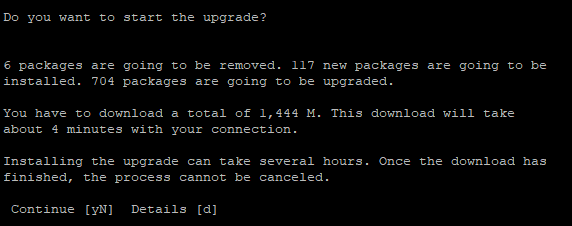
You can press y to continue installation or d to show details about the new packages.
Occasionally, the tool ask you some questions about different tools and what to do with the existing configuration.
For example, I've modified the default chrony configuration, so the tool asks me what to do with it:

Most of the time, you can just keep the local version currently installed.
After a successful installation, the tool may ask you what to do with obsolete packages:
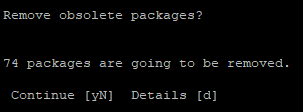
I recommend removing them (type y and press enter).
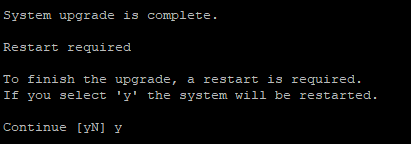
If the upgrade was successful, the tool will prompt the following:
System upgrade is complete.

Restart required

To finish the upgrade, a restart is required.
If you select 'y' the system will be restarted.

Continue [yN]
To finish the upgrade, reboot the system (type y and press enter):
If the system boots, you may consider the upgrade to be a success.
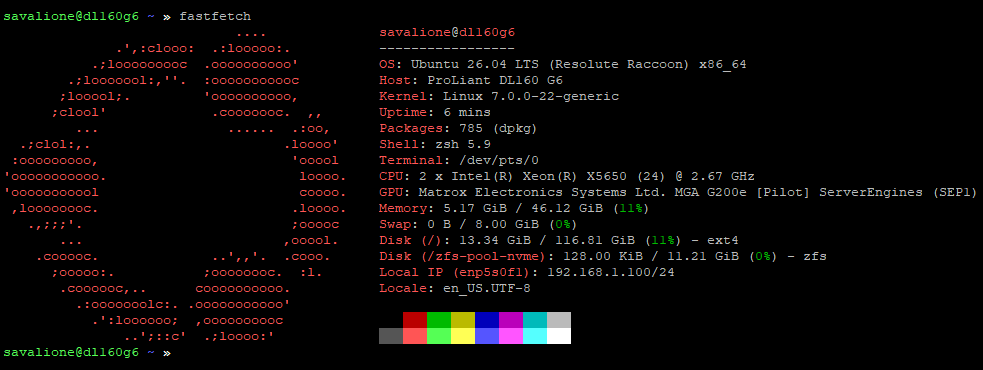
In my case, the new Linux kernel version is 7.0.0-22-generic.
Here is the beautiful output using fastfetch:
Congratulations on the distribution upgrade from 24.04 LTS to 26.04 LTS!
Note: There is no development version of an LTS available
If you try to upgrade the system using do-release-upgrade and see the following:
Checking for a new Ubuntu release
There is no development version of an LTS available.
To upgrade to the latest non-LTS development release
set Prompt=normal in /etc/update-manager/release-upgrades.
This means that there is no Ubuntu 26.04.01 LTS yet.
To solve this issue, add the -d flag to do-release-upgrade:
do-release-upgrade -d
However, doing so is generally not recommended for production environments.
Note: Configuring grub-pc
At some point during the installation, you may see the following question:

The device to install grub-pc on will depend on your particular configuration.
Generally it's going to be the whole drive (for example sda) and not a partition (not sda2).
If you boot from an NVME device, the same principle may apply.