I often need to test some network equipment for homelab purposes. Even though almost any device I use has comprehensive documentation and a spec sheet, it's better to check equipment personally to eliminate possible wrong configurations or simply broken devices.
There are many great tools to test networks like iPerf 3, iPerf 2, scamper, etc., but they often lack required features or not able to saturate high throughput links. Among specific tools designed to test network equipment, Cisco TRex is worth noting. It's open source, uses DPDK, has comprehensive documentation, provides great Python API with Scapy support, and is a de facto a standard for testing equipment in many fields.
I've previously written how to install DPDK on an Ubuntu server. In this post I'll show how to install Cisco TRex and do simple L2 benchmarks.
This post is divided into five steps:
- Installing DPDK
- Installing Python
- Setting up DPDK
- Configuring Cisco TRex for a simple L2 loopback
- Running a simple L2 benchmark
At the end of this post, you may also find some common issues and ways to fix them.
Installing DPDK
I've previously written how to install DPDK on an Ubuntu server:
In that post, I installed DPDK v26.03 on Ubuntu 24.04 LTS, but I had no issues doing the same for DPDK v26.07-rc1 and Ubuntu 26.04 LTS.
If you have DPDK installed, you can skip this step.
Installing Python
Cisco TRex v3.08 works well with Python 3.12. Ubuntu 24.04 LTS is shipped with Python 3.12 and there is no need to do anything, so if you use 24.04 you can skip this step.
If you use Ubuntu 26.04 LTS, you may need to install an additional Python 3.12 environment, because 26.04 is shipped with Python 3.14 by default.
In this section I'll be using pyenv to manage multiple Python installations.
You may use any other environment manager you prefer.
Use the pyenv automatic installer script:
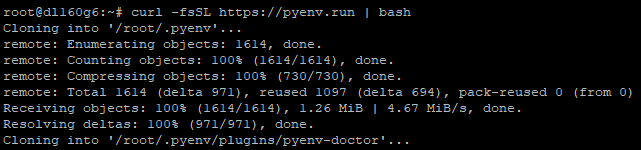
curl -fsSL https://pyenv.run | bash
Running the pyenv installation script:
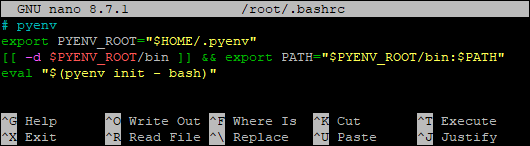
Add the following to your environment variables.
For Bash it's usually ~/.bashrc, for Zsh it's ~/.zshrc:
export PYENV_ROOT="$HOME/.pyenv"
[[ -d $PYENV_ROOT/bin ]] && export PATH="$PYENV_ROOT/bin:$PATH"
eval "$(pyenv init - bash)"
Adding pyenv to environment variables:
Apply the changes to the environment variables by running:
# For Bash
source ~/.bashrc

# For Zsh
source ~/.zshrc
Before installing required dependencies, I recommend updating and upgrading all packages:
apt update
apt upgrade
Install dependencies needed to compile Python:
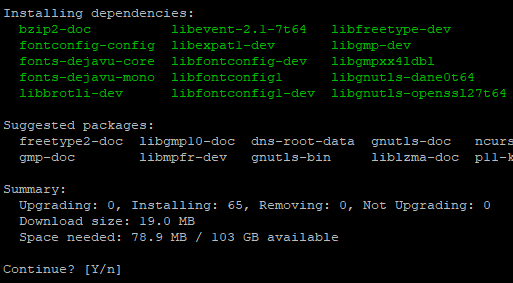
apt install make build-essential libssl-dev zlib1g-dev libbz2-dev libreadline-dev libsqlite3-dev curl git libncursesw5-dev xz-utils tk-dev libxml2-dev libxmlsec1-dev libffi-dev liblzma-dev libzstd-dev
Installing apt dependencies:
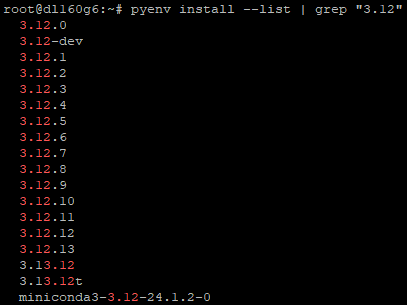
Check available Python versions:
pyenv install --list | grep "3.12"
Available Python versions to be installed:
Install Python:
pyenv install 3.12.13
Python is being installed via pyenv:

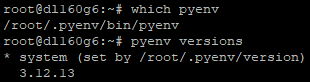
Check that it was installed:
pyenv versions
pyenv has been successfully installed, the right version of Python is in use:
Installing Cisco TRex
TRex can be installed anywhere on your system.
I'll be installing it in /opt/trex as suggested in the official documentation.
Create a directory and enter it:
mkdir -p /opt/trex
cd /opt/trex
Download the latest stable version:
wget --no-cache https://trex-tgn.cisco.com/trex/release/latest
Due to some certificate issues, I had to add the --no-check-certificate flag to bypass SSL check.
So the command to download the stable version looked like this:
wget --no-cache https://trex-tgn.cisco.com/trex/release/latest --no-check-certificate
Downloading Cisco TRex:

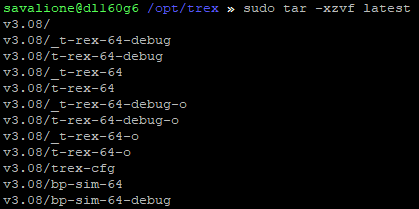
Unpack the archive:
tar -xzvf latest
If you download the file using your web browser, you'll download the lates.tar file that isn't compressed.
To unpack such file use:
tar -xvf latest.tar
Unpacking the archive:
You can delete the archive if you want:
rm latest
Right now TRex should be installed in the /opt/trex/v3.08 directory and ready to use.
As of today June 22, 2026, version v3.08 is the latest available stable version.
The next sections of this post are not necessary and focused on configuring DPDK, network interfaces, and performing simple L2 tests.
Setting up DPDK
Allocate hugepages for DPDK:
dpdk-hugepages.py --setup 1G
Load the VFIO driver:
modprobe vfio-pci
Allocating hugepages and loading the VFIO driver:

Check available DPDK devices:
dpdk-devbind.py --status
All devices recognized by DPDK:
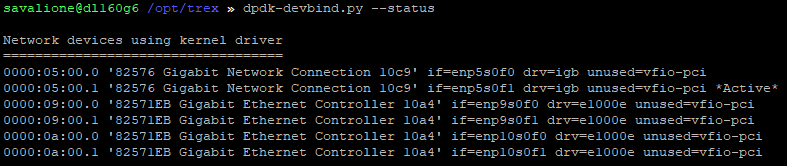
You can see that vfio-pci appeared in the unused= section.
*Active* means that the network interface is currently in use.
Before changing the default NIC driver to vfio-pci, I recommend writing down all MAC addresses of all interfaces.
On the L2 testing step, it may be useful to know NIC MACs, so you will be able to create TRex configuration manually:
ip -br link
Network devices using Linux kernel driver with their MAC addresses:

Bind NICs to the VFIO driver:
dpdk-devbind.py -b vfio-pci 0000:09:00.0 0000:09:00.1 0000:0a:00.0 0000:0a:00.1
0000:09:00.0, 0000:09:00.1, 0000:0a:00.0, 0000:0a:00.1 - are my NICs that I want to bind to VFIO.
In your case, the number of NICs and their addresses almost certainly will differ.
Check DPDK devices again to see that the NICs were successfully attached to the VFIO driver and are usable by DPDK:
dpdk-devbind.py --status
Network devices were successfully attached to the VFIO driver and are using DPDK-compatible driver:
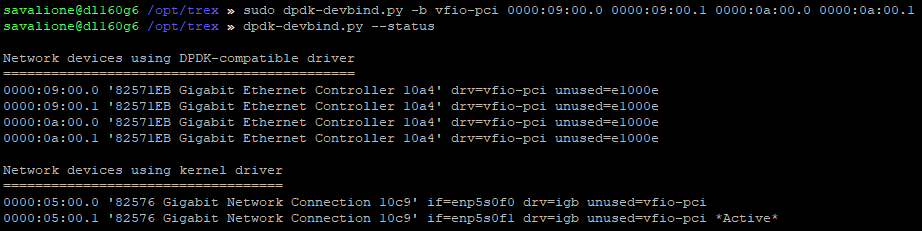
You can see that the VFIO driver was successfully loaded and NICs were detached from the Intel e1000e driver
At this point DPDK should be configured and TRex should be able to use DPDK devices.
Configuring Cisco TRex for a simple L2 loopback
In order to run L2 TRex tests, you need to create a TRex configuration file.
It is supposed to be located here: /etc/trex_cfg.yaml.
You can do it manually or by using the dpdk_setup_ports.py script.
First of all, get interfaces IDs:
dpdk-devbind.py --status
Interfaces IDs:
To create the configuration manually, add the following in the /etc/trex_cfg.yaml:
# Cisco TRex configuration
# The file is /etc/trex_cfg.yaml
- version: 2
  interfaces: ['09:00.0', '09:00.1']
  port_info:
      - dest_mac: 00:15:17:78:82:b7
        src_mac:  00:15:17:78:82:b6
      - dest_mac: 00:15:17:78:82:b6
        src_mac:  00:15:17:78:82:b7
For L2 tests you want to know MACs of the interfaces attached to DPDK.
The first interface should have the destination MAC of the second interface, and vice versa.
Here 00:15:17:78:82:b6 is a MAC address of my first NIC interface, and 00:15:17:78:82:b7 is the second.
A more convenient approach is to use the tool shipped with TRex for setting up interfaces:
./dpdk_setup_ports.py -i
If you use the tool, you want:
Do you want to use MAC based config? (y/N): y
Enter list of interfaces separated by space (for example: 1 3): Your interfaces
Change it to MAC of DUT? (y/N): n
Safe the config to file? (Y/n): y
Using the TRex DPDK bind tool, MAC based config and choosing interfaces:
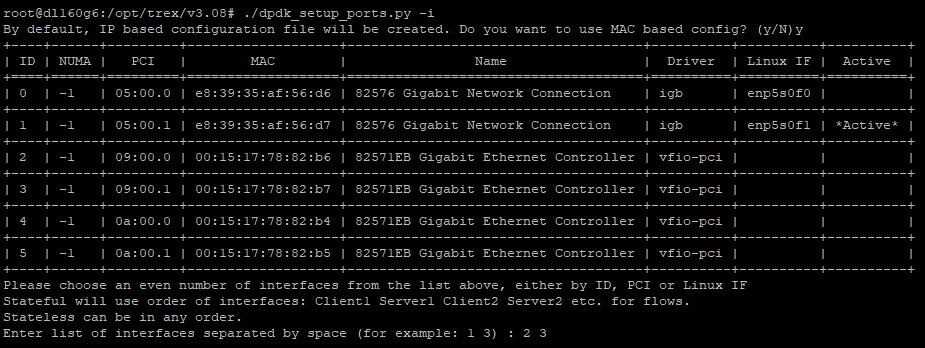
Using the TRex DPDK bind tool, using loopback MACs:

Using the TRex DPDK bind tool, generated configuration:
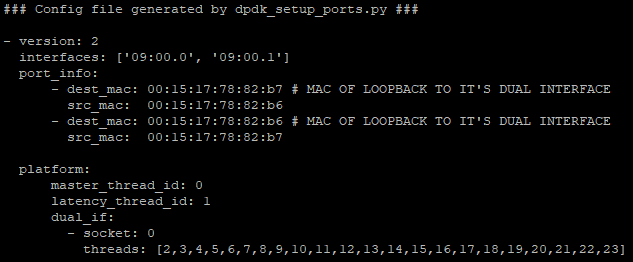
Using the TRex DPDK bind tool, saving configuration:

By using the tool, you don't have to know MAC addresses. Also, in the future you may simply use it to configure the traffic generator for L3 testing purposes.
To start an L2 loopback test run the following in the first terminal:
./t-rex-64 --no-ofed-check --no-scapy-server -i
Running TRex in the first terminal:
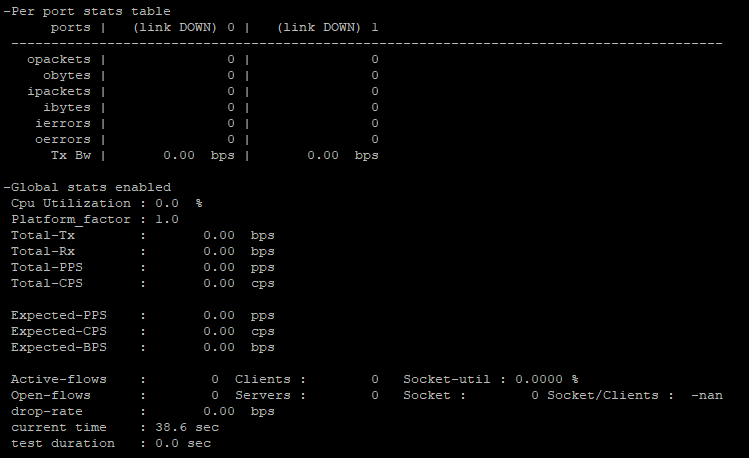
Then, open a second terminal and enter TRex console:
./trex-console
Running TRex console:
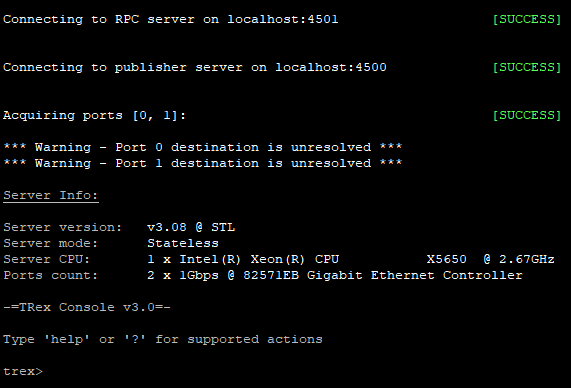
Via this new TRex console you can start tests, see and clear the traffic statistic, see the queue, etc.
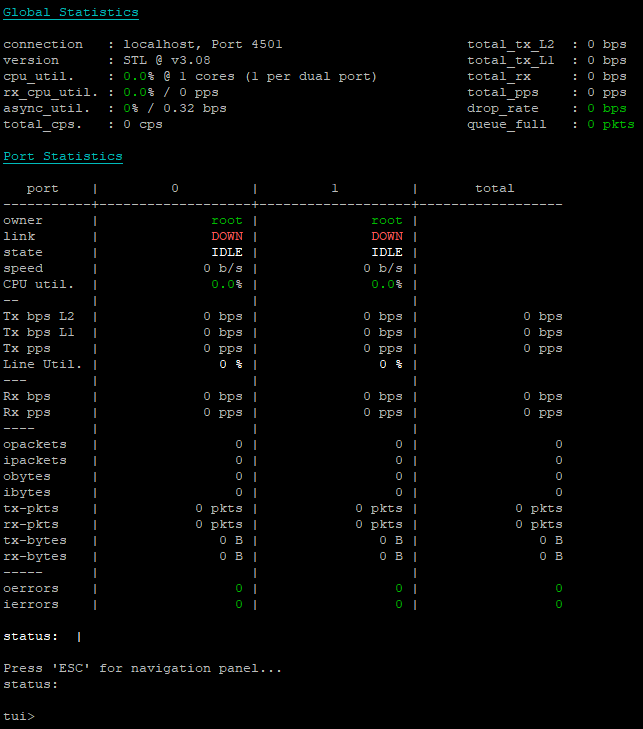
In this TRex console, run the following to enter text user interface:
tui
Running TUI without any traffic and a loopback cable connected:
Run a simple L2 loopback test:
start -f stl/bench.py -m 90% --port 0 1 -t size=64
Running a simple L2 loopback test with attached ethernet cable:
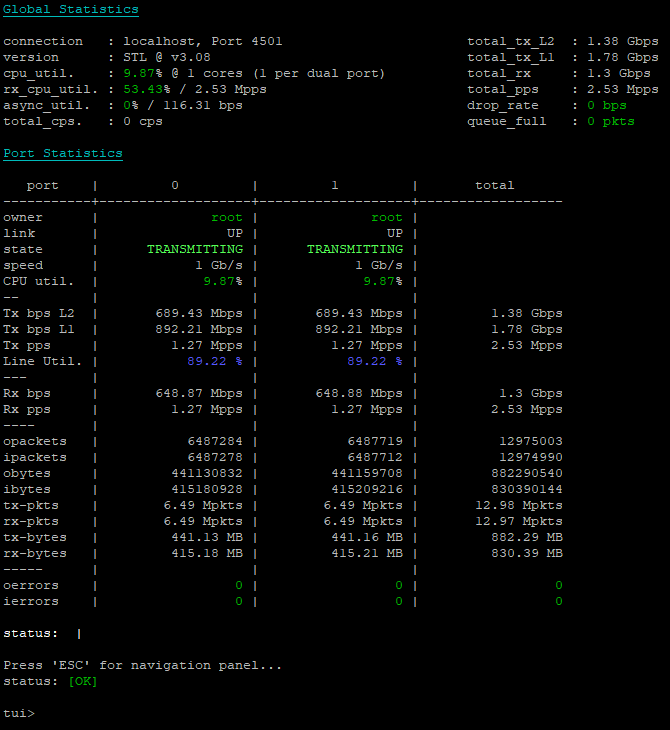
You can change different benchmark parameters according to your needs.
In the previous test I was using ports 0 and 1, frame size 64 bytes, and 90% line utilization.
If you see traffic moving between interfaces, that means that TRex is functioning properly.
Congratulations on setting up this amazing open source software!
Running a simple L2 benchmark
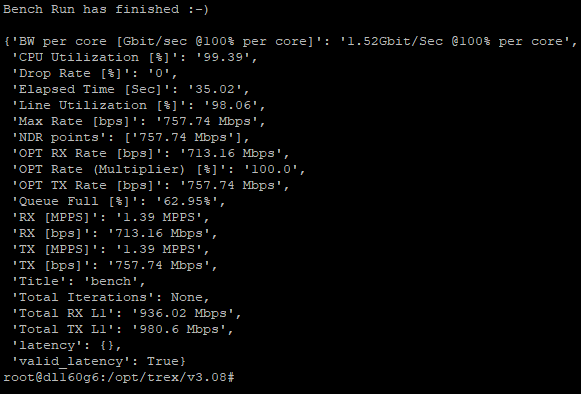
In this section I'll show a simple way to run an L2 benchmark. This command is designed to test your network interfaces by gradually increasing PPS rate until any frames go into the queue.
In the first terminal, you need to run TRex:
./t-rex-64 --no-ofed-check --no-scapy-server -i
In the second terminal, run the benchmark:
./ndr --stl --port 0 1 --profile stl/bench.py --tun size=64 --pdr 0 --q-full 100
L2 simple benchmark using Cisco TRex:
Note: No module named 'cgi'
If you try to run ./trex-console and see this:
Using 'python3' as Python interpeter

Traceback (most recent call last):
  File "<frozen runpy>", line 198, in _run_module_as_main
  File "<frozen runpy>", line 88, in _run_code
  File "/opt/trex/v3.08/automation/trex_control_plane/interactive/trex/console/trex_console.py", line 49, in <module>
    from ..stl.api import *
  File "/opt/trex/v3.08/automation/trex_control_plane/interactive/trex/stl/api.py", line 4, in <module>
    from ..utils.common import *
  File "/opt/trex/v3.08/automation/trex_control_plane/interactive/trex/utils/common.py", line 11, in <module>
    from scapy.utils import *
  File "/opt/trex/v3.08/external_libs/scapy-2.4.3/scapy/utils.py", line 31, in <module>
    from scapy.config import conf
  File "/opt/trex/v3.08/external_libs/scapy-2.4.3/scapy/config.py", line 23, in <module>
    from scapy.themes import NoTheme, apply_ipython_style
  File "/opt/trex/v3.08/external_libs/scapy-2.4.3/scapy/themes.py", line 14, in <module>
    import cgi
ModuleNotFoundError: No module named 'cgi'
Error in sys.excepthook:
Traceback (most recent call last):
  File "/usr/lib/python3/dist-packages/apport_python_hook.py", line 238, in partial_apport_excepthook
    return apport_excepthook(binary, exc_type, exc_obj, exc_tb)
  File "/usr/lib/python3/dist-packages/apport_python_hook.py", line 122, in apport_excepthook
    report["ExecutableTimestamp"] = str(int(os.stat(binary).st_mtime))
                                            ~~~~~~~^^^^^^^^
FileNotFoundError: [Errno 2] No such file or directory: '/opt/trex/v3.08/-m'

Original exception was:
Traceback (most recent call last):
  File "<frozen runpy>", line 198, in _run_module_as_main
  File "<frozen runpy>", line 88, in _run_code
  File "/opt/trex/v3.08/automation/trex_control_plane/interactive/trex/console/trex_console.py", line 49, in <module>
    from ..stl.api import *
  File "/opt/trex/v3.08/automation/trex_control_plane/interactive/trex/stl/api.py", line 4, in <module>
    from ..utils.common import *
  File "/opt/trex/v3.08/automation/trex_control_plane/interactive/trex/utils/common.py", line 11, in <module>
    from scapy.utils import *
  File "/opt/trex/v3.08/external_libs/scapy-2.4.3/scapy/utils.py", line 31, in <module>
    from scapy.config import conf
  File "/opt/trex/v3.08/external_libs/scapy-2.4.3/scapy/config.py", line 23, in <module>
    from scapy.themes import NoTheme, apply_ipython_style
  File "/opt/trex/v3.08/external_libs/scapy-2.4.3/scapy/themes.py", line 14, in <module>
    import cgi
ModuleNotFoundError: No module named 'cgi'
That means you're trying to use an incompatible Python version. TRex v3.08 is intended to be used with Python 3.12.
The module cgi was removed in Python version 3.13:
To solve the issue, use Python 3.12.
The Installing Python section of this guide is suggests a way to manage multiple Python installations using the version manager pyenv.
Note: Could not determine MAC
At any point of using DPDK or TRex scripts, you may see this error appearing in the terminal:
Could not determine MAC of interface: 2. Please verify with -t flag.
That probably means that you've already bound the interface to vfio-pci.
You can reverse this process by using:
dpdk-devbind.py -b e1000e 0000:09:00.0 0000:09:00.1
Here I replace the VFIO driver with the default e1000e driver so NICs can be used by the kernel again. In your case IDs and drivers will differ.
Note: Requested device cannot be used
You may see this message:
vfio_iommu_type1_attach_group: No interrupt remapping support. Use the module param "allow_unsafe_interrupts" to enable VFIO IOMMU support on this platform
Or when trying to run ./t-rex-64 --no-ofed-check --no-scapy-server -i something like this:
The ports are bound/configured.
Starting  TRex v3.08 please wait  ...
EAL: 0000:09:00.0 failed to select IOMMU type
PCI_BUS: Requested device 0000:09:00.0 cannot be used
EAL: 0000:09:00.1 failed to select IOMMU type
PCI_BUS: Requested device 0000:09:00.1 cannot be used
EAL: Bus (pci) probe failed.
ERROR in DPDK map
Could not find requested interface 09:00.0
To solve this issue, you can try to bypass the VFIO safety check.
Allow unsafe interrupts:
echo "options vfio_iommu_type1 allow_unsafe_interrupts=1" > /etc/modprobe.d/iommu_unsafe_interrupts.conf
Unload the module:
modprobe -r vfio_iommu_type1
Reload the module:
modprobe vfio_iommu_type1
See Verify IOMMU interrupt remapping is enabled for more information.